Connect SuperFrete
Quote PAC, SEDEX, Mini Envios, Jadlog and Loggi through SuperFrete at checkout, buy the label on the order page with your wallet balance and get tracking updates right away.
With SuperFrete connected, the checkout quotes PAC, SEDEX, Mini Envios, Jadlog and Loggi for the buyer's CEP. After the sale, the team buys the label on the order page, paid with your SuperFrete wallet balance, and SuperFrete tells Vipter about every tracking change: the order becomes shipped and delivered on its own.
Before you start, read how carrier shipping works.
Before you start
- A SuperFrete account. To test without spending, also use an account in the sandbox, at
sandbox.superfrete.com. - Balance in the SuperFrete wallet to buy labels. To only quote, you don't need it.
- The store address in Brazil, with CEP, in Project settings, or another origin address.
- The CPF or CNPJ of the sender, for the labels.
- The Admin or Owner role in the Vipter project.
Step 1: generate the token in SuperFrete
- Sign in to SuperFrete in the environment you will use: the production account or the sandbox one.
- Open IntegraçõesDesenvolvedores (Integrations › Developers) and generate a token.
- Copy the token and keep it for step 2.
Keep the token safe
This token can buy labels with your wallet balance. Paste it only into Vipter. Once saved, it is not shown again: the field only shows its last characters.
Step 2: connect in Vipter
- In the Vipter dashboard, open GeneralIntegrationsShippingSuperFrete.
- Fill in the Connection card.
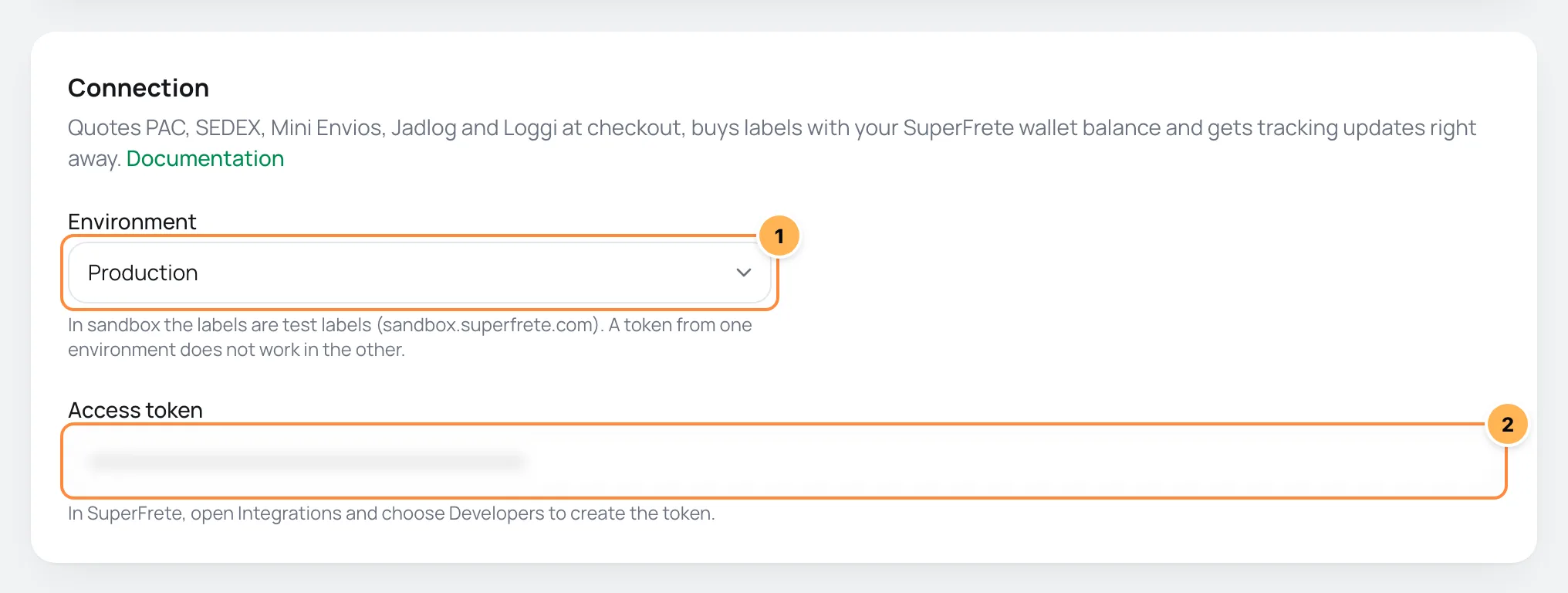
| # | Field | What to paste |
|---|---|---|
| 1 | Environment | Production to sell for real. Sandbox to test with test labels. A token from one environment does not work in the other. |
| 2 | Access token | The token from step 1, generated in the same environment chosen next to it. When editing later, leave it blank to keep the saved token. |
When you save, Vipter registers the tracking notice in your SuperFrete account on its own, and the card shows: Automatic tracking is on: SuperFrete tells Vipter about every change. If the card says automatic tracking has not been registered yet, you don't need to do anything: Vipter tries again on its own.
Step 3: origin and sender
The Origin and sender card says where packages leave from and who shows as the sender on the label.
- Ship from the store address: on, the origin is the store address, shown right below. Off, fill in CEP, State, Street, Number, Complement, District and City.
- In Label sender, fill in the sender's details:
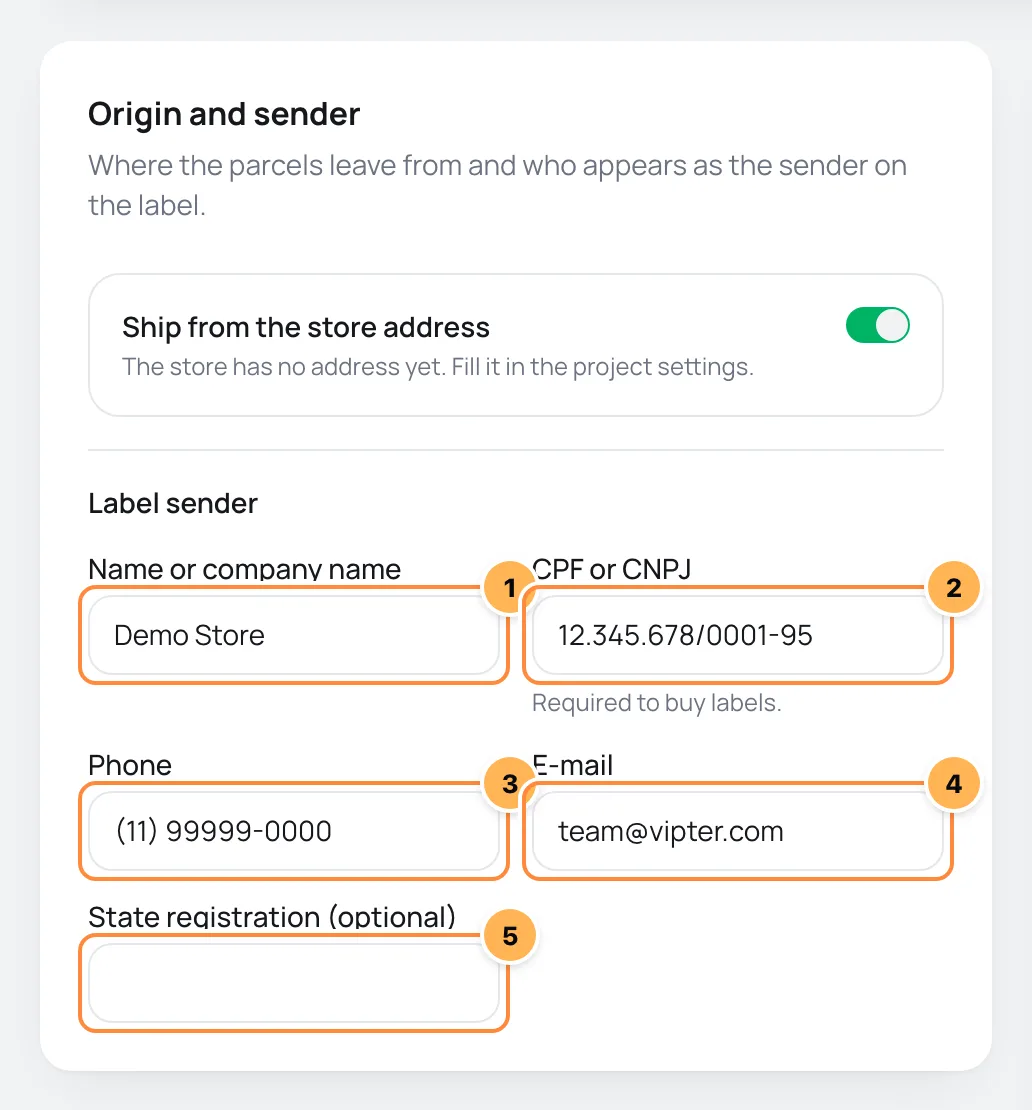
| # | Field | What to paste |
|---|---|---|
| 1 | Name or company name | The name printed on the label. It comes filled in with the store name. |
| 2 | CPF or CNPJ | The CPF or CNPJ of the sender. It can stay blank to only quote, but without it the label is not bought. |
| 3 | Phone | A contact phone number, with area code. |
| 4 | It comes filled in with the store support e-mail. | |
| 5 | State registration (optional) | The state registration, if the company has one. |
The label needs the origin district
With Ship from the store address on, Vipter reads the district from the second line of the store address (project settings), on its own ("Centro") or after the complement ("Sala 4 - Centro"). If label generation says the origin address is incomplete, check that line or turn off Ship from the store address and fill in the full origin here.
Step 4: adjust the checkout quote
The Checkout quotes card applies to every zone. Applies to every zone. Each "Carrier" method can still add its own markup and days.
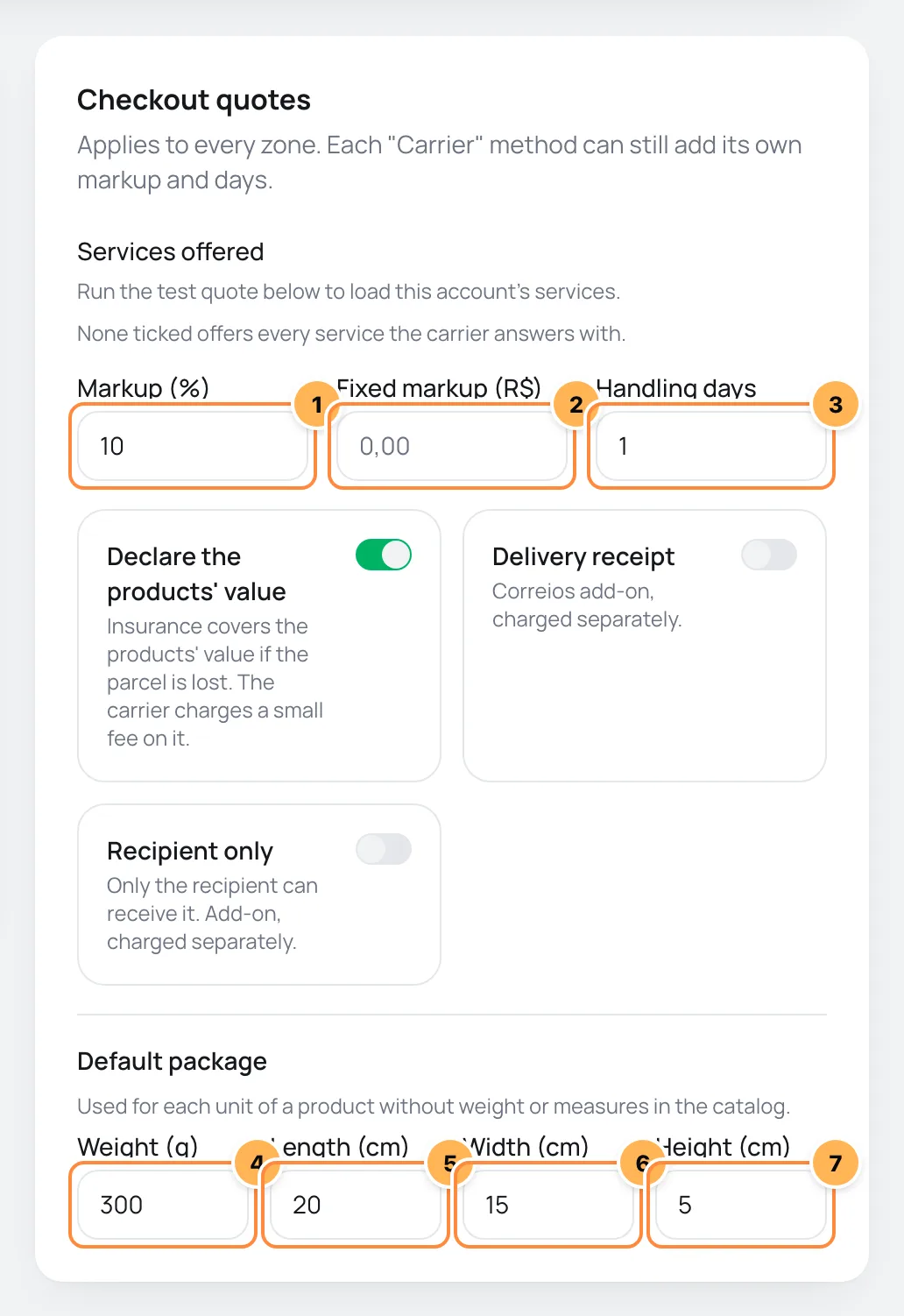
| # | Field | What to paste |
|---|---|---|
| 1 | Markup (%) | A percentage added to the SuperFrete price, such as 10. Blank, nothing is added. |
| 2 | Fixed markup (R$) | An amount in reais added after the percentage, such as 2.00. |
| 3 | Handling days | Business days added to the delivery time, the time the store takes to ship. |
| 4 | Weight (g) | The weight, in grams, used for each unit of a product without weight in the catalog. |
| 5 | Length (cm) | The length used for each unit of a product without measures. |
| 6 | Width (cm) | The width used for each unit of a product without measures. |
| 7 | Height (cm) | The height used for each unit of a product without measures. |
On the same card:
- Services offered: they show after the test in step 5. None ticked offers every service the carrier answers with.
- Declare the products' value: Insurance covers the products' value if the parcel is lost. The carrier charges a small fee on it. It comes on.
- Delivery receipt and Recipient only: extra Correios services, charged separately. When on, they go into the quote and the label.
Finally, leave Active on and click Save.
Step 5: test the quote
- After saving, the Test quote card shows at the bottom of the page. Quotes the default package, declared at R$ 100, from the origin to the CEP you enter. Without a CEP, it quotes to the origin itself.
- Type a CEP and click Quote.
- Tick the services you want to offer in Services offered and save again.
It worked if
The list shows the services with the price the checkout would charge. When you have a markup, the SuperFrete price shows right below. The top line shows the connected account.
Step 6: create the method in the zone
The checkout only quotes once a shipping zone has the Carrier method with SuperFrete. See the walkthrough in Carrier shipping.
How it works afterwards
- At checkout: each service becomes a shipping option, with its price and delivery time.
- On the order page: the team buys the label with the wallet balance. SuperFrete returns the tracking code and the print link right away. See Labels and tracking.
- Tracking: SuperFrete tells Vipter about every change. A periodic check stays as a fallback, in case a notice gets lost.
The Recent labels card shows the latest labels bought, with status, service, tracking code and price.
Turn on, turn off and remove
- Active: Off, the checkout stops quoting with this platform.
- Remove: Remove this carrier? The checkout stops quoting with it and the labels already bought stay on the orders. The tracking notice also leaves your SuperFrete account.
Common problems
-
The carrier refused the token. Create a new one and save again.
The token was deleted in SuperFrete or belongs to the other environment. Generate another one in the right environment and save.
-
The store has no Brazilian address with a CEP. Fill it in the project settings or enter another origin.
Fill in the address in Project settings or turn off Ship from the store address and enter the origin.
-
Enter a CPF (11 digits) or CNPJ (14 digits).
The sender's CPF or CNPJ has too few or too many digits.
-
Automatic tracking is not registered yet. Vipter tries again on its own and checks the tracking periodically meanwhile.
Vipter tries to register the notice again every few minutes. If the message stays, save the connection again. Orders keep being updated by the periodic check.
-
The carrier has no service for this CEP.
No service serves that CEP with the default package.
-
The test says The carrier refused the quote
The SuperFrete answer shows right after, with the code and the reason for the refusal. Fix what it points to, such as the origin CEP or the default package measures, and test again.
What to do next
- Create the Carrier method in a zone in Carrier shipping.
- Generate your first label in Labels and tracking.
Connect Melhor Envio
Quote PAC, SEDEX, Jadlog and the other Melhor Envio carriers at checkout, buy the label on the order page with your wallet balance and let tracking update the order.
Connect Frenet
Quote at checkout the carriers you set up in Frenet, with markups, handling time and a default package. Frenet only quotes. Labels stay outside this integration.