Carrier shipping
Quote shipping live from Melhor Envio, SuperFrete or Frenet right at checkout, with markups, free shipping above an amount and a reserve price for when the carrier does not answer.
With a carrier connected, the checkout no longer depends only on the costs you type. It asks the carrier for the price and delivery time of each service for the buyer's CEP and shows the options right away, such as "PAC — Correios" and "SEDEX — Correios". Zones still live in CatalogShipping: what is new is the Carrier method.
| Melhor Envio | SuperFrete | Frenet | |
|---|---|---|---|
| Quote at checkout | Yes | Yes | Yes |
| Label bought on the order page | Yes | Yes | No |
| Test environment (sandbox) | Yes | Yes | No |
| Tracking that updates the order | Yes | Yes | No |
| How it connects | Token, or the Melhor Envio account when the dashboard offers it | Token | Token |
Before you start
- Products of type Physical product or Physical subscription with delivery, ideally with weight and measures in the Shipping block. See Create and edit a product.
- The store address in Brazil, with CEP, in Project settings, or another origin address in the integration.
- The Admin or Owner role in the Vipter project.
How the quote works
- The buyer enters a delivery address in Brazil, with the full CEP.
- The checkout picks the address's zone, as always. If the zone has an active Carrier method, Vipter builds the order's package and asks the carrier for a quote.
- Each service the carrier answers with becomes a shipping option, from cheapest to most expensive.
The quote waits at most 4 seconds. Vipter reuses the answer for up to 10 minutes for the same CEP and the same package, so changing the coupon or the shipping option does not ask again. An address outside Brazil or an incomplete CEP leaves the Carrier method out, and the zone's other methods show as usual.
Step 1: connect the carrier
Connect one of the platforms and use the Test quote card on its page. The test confirms the connection and loads your account's list of services, which you pick in step 2.
Melhor Envio
SuperFrete
Frenet
Step 2: create the Carrier method in the zone
- Open CatalogShipping and, on the zone card, click Add method.
- In Type, choose Carrier.
- Fill in the window:
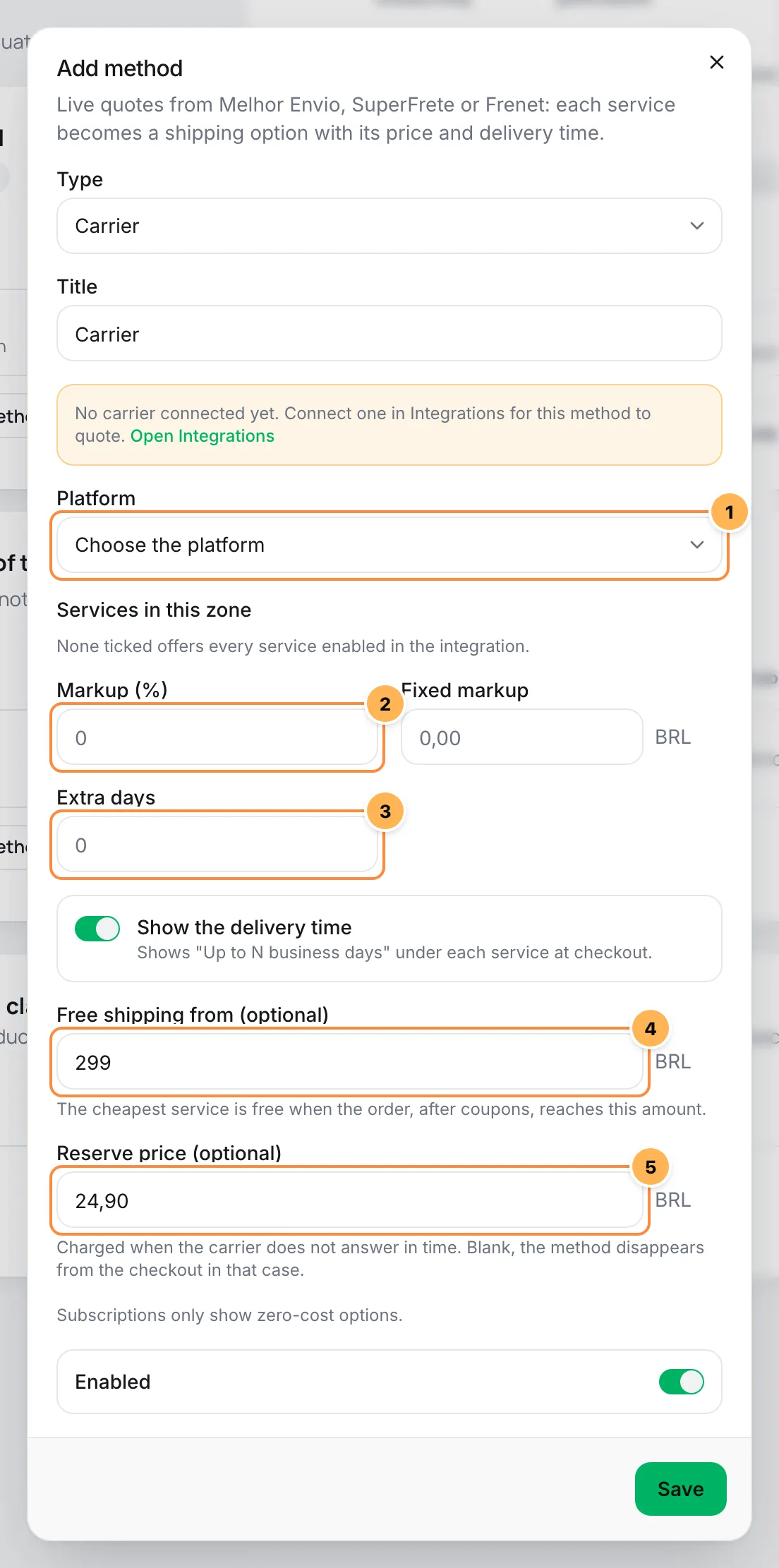
- Title: only shows on the reserve option, when the carrier does not answer. The regular options carry each service's name.
- Platform (1): the carrier that quotes this zone. Only connected ones can be chosen. The others show as not connected.
- Services in this zone: None ticked offers every service enabled in the integration. The list comes from the integration's test quote.
- Markup (%) (2) and Fixed markup: added to the price after the integration's markups.
- Extra days (3): added to the carrier's delivery time, after the integration's handling days.
- Show the delivery time: Shows "Up to N business days" under each service at checkout.
- Free shipping from (optional) (4): The cheapest service is free when the order, after coupons, reaches this amount.
- Reserve price (optional) (5): Charged when the carrier does not answer in time. Blank, the method disappears from the checkout in that case.
- Enabled: off, the method disappears from the checkout without being deleted.
- Click Save. In the zone's list, the Cost column shows that the method quotes live and with which platform.
This method's amounts are in reais, whatever the store currency. When the buyer pays in another currency, the checkout converts at the day's rate. See Prices in several currencies.
A zone can have more than one method
The same zone can have a Carrier method and a Local pickup, for example. You can also have two carrier methods with different services, such as one with PAC only and another with SEDEX only, each with its own markup.
How price and delivery time are calculated
The price the buyer sees is the carrier's, with the integration's markups and then the method's. The delivery time adds the integration's handling days and the method's extra days.
| Price | Delivery time | |
|---|---|---|
| The carrier answers | R$ 20.00 | 5 business days |
| Integration: 10% and R$ 2.00 markup, 1 handling day | R$ 24.00 | 6 business days |
| Method: 5% markup, 2 extra days | R$ 25.20 | 8 business days |
With the delivery time on, this option shows at checkout as "Up to 8 business days", in the buyer's language.
What the buyer sees
- One option per service, with the service and carrier name, the price and the delivery time, from cheapest to most expensive.
- Free shipping from: when the order, after coupons, reaches the amount, the cheapest option shows as free. The others keep their price.
- Free shipping coupon: a coupon with Allow free shipping brings every carrier option to zero. See Coupons.
- The carrier did not answer in time: a single option shows, with the method's Title and the reserve price. Without a reserve price, the method disappears and only the zone's other methods remain.
The chosen service is saved on the order. When the buyer paid the reserve price, the team picks the service when generating the label. See Labels and tracking.
Subscriptions with delivery
Subscriptions only show zero-cost options. A subscription is always charged at the plan price, so a carrier option only shows on a subscription when it is free: with free shipping above an amount or with a free shipping coupon. Include shipping in the offer price.
How the package is built
Vipter quotes a single volume for the whole order, and the same volume goes on the label. That is why the label price stays close to what the checkout charged.
- Measures: each unit lies flat, with its smallest side up, and the units stack. The package has the length and width of the largest unit and the height of the stack.
- Weight: the sum of every unit's weight.
- Product without data: a product without weight uses the weight of the integration's Default package for each unit. Without one of the three measures, it uses the default package's measures.
- Minimum size: 16 × 11 × 2 cm, the smallest box the Correios accept.
- What goes in: every unit in the purchase, including those of a pack and of order bumps with delivery.
- Declared value: with Declare the products' value on in the integration, the products' value goes as insurance.
An example: 2 units of 20 × 15 × 5 cm and 300 g each become a 20 × 15 × 10 cm package weighing 600 g.
Enter real weight and measures
The default package is only a fallback. With real weight and measures on the products, the checkout quote and the label price match what the carrier charges.
Common problems
-
No carrier connected yet. Connect one in Integrations for this method to quote.
No carrier is connected. Connect one and come back to create the method.
-
The checkout does not show the carrier's options
Check that the address is in Brazil with the full CEP, that the address's zone has an active Carrier method and that the integration is on, with the origin address filled in. An integration that is off or removed makes the method disappear, even with a reserve price. Also check that the services ticked in the zone serve that CEP and that the offer is not a subscription.
-
Only one option shows, with the method's title
The carrier did not answer in 4 seconds and the checkout used the reserve price. Use the integration's Test quote card to see whether it answers.
-
The price at checkout differs from the carrier's website
The checkout adds the integration's and the method's markups. The declared value, Delivery receipt and Recipient only also change the price.
What to do next
- Buy the label and follow the delivery in Labels and tracking.
- Review the zones and the other methods in Shipping: zones, methods and classes.
Connect PlugNotas
Issue NFS-e and NF-e through PlugNotas for every paid order, test in the sandbox before going to production and cancel on refund.
Connect Melhor Envio
Quote PAC, SEDEX, Jadlog and the other Melhor Envio carriers at checkout, buy the label on the order page with your wallet balance and let tracking update the order.