How the ERP integration works
Send each paid order to Bling or ERP Olist as a sales order, with optional NF-e and stock, and get the invoice and the tracking back. Learn what goes, when it goes and what to do when an order fails.
With an ERP connected, every paid order in Vipter becomes a sales order in your ERP, with the customer, the items, the shipping, the discount and the payment. If you want, the ERP also generates the NF-e (the Brazilian electronic invoice) and takes the goods out of stock. The invoice and the tracking come back to Vipter: the order is marked as shipped, the buyer gets the shipping e-mail and the invoice number shows on the order page.
| Bling | ERP Olist (Tiny) | |
|---|---|---|
| How it connects | Through Vipter's app, when the dashboard offers it, or through an app created in your account | Always through an app created in your account |
| Invoice and tracking notifications | Arrive on their own through Vipter's app. With your own app, you register the URL in its Webhooks tab | You install ERP Olist's Webhooks app and paste the URL |
| Refunded order | Moves to your account's Cancelado (cancelled) status | Becomes cancelled |
| Shipped order | Through the tracking code or a status you choose | Through the tracking code or when the order becomes shipped or delivered |
| Access renewal | Vipter renews it on its own | Vipter renews it on its own, several times a day |
Before you start
- A Bling or ERP Olist account, with the products registered and a code (SKU) on each one.
- For the ERP to generate the NF-e: NF-e issuing set up in it, with the digital certificate, operation nature and taxes.
- If the ERP will create missing products: weight, dimensions and tax data on the Vipter products. See Create and edit a product.
- The Admin or Owner role in the Vipter project.
Connect the ERP
Each ERP has its own page under GeneralIntegrationsERP. The connection walkthrough is on each one's page:
Bling
ERP Olist (Tiny)
You can connect both at the same time. In that case, each order goes to both ERPs.
Which orders go to the ERP
An order goes to the ERP when it is paid: at checkout, on a subscription renewal or when the team marks the order as paid by hand. The Orders sent field decides which ones:
- Only orders that ship: the default. Digital products and services are left out.
- Every paid order: every paid order becomes a sales order, including the ones without delivery.
More rules:
- Physical subscription renewals: each charge becomes a new sales order, because it is a new delivery to ship, invoice and take out of stock.
- Quick links: the order of a quick link only goes after the team composes the products. Changing the composition later does not send it again.
- One sales order per order: the same order is never sent twice to the same ERP.
- Reais only: an order charged in another currency fails with The order is not in reais and the ERP only records sales in reais.
- Test purchases: a purchase made with the payment account in test mode also becomes a sales order. Cancel that order in the ERP after the test.
- Paused integration: with Integration active off, nothing goes to the ERP. Orders paid in that period are not sent later on their own.
An order paid before you turned the integration on, or left out by the Orders sent field, goes through the Send to Bling button on the order page. See The ERP card on the order page.
What goes into the sales order
- Customer: name, CPF or CNPJ, e-mail, mobile and the billing address. Vipter looks up the contact by CPF or CNPJ and only creates a new one when it finds none. A buyer without a document gets a new contact on each order.
- Items: one line per order item, at list price. These are the main product, each order bump and each product of a quick link's composition. A pack is a single line, with its units.
- Discount: the difference between the items' list price and what the buyer paid for them, such as a coupon or a pack price.
- Other expenses: the installment interest paid by the buyer.
- Shipping: the amount charged, with the Freight paid by modality and the logistics service or shipping method, when filled in. On Bling, the Carrier goes too. Free shipping goes as no freight.
- Delivery: the order's delivery address, or the billing one when the order has none. An order with only products that don't ship needs no address.
- Payment: the ERP's payment method for the method used. On a card in installments, one installment a month, the first 30 days after the payment. PIX, boleto and digital wallet go in a single installment, on the payment date.
- Date: the payment day, in Brasília time.
- Notes: the Vipter order ID, the coupons, the payment method with the installments and the delivery name, such as
Pedido Vipter <ID> · Cupom: VOLTA10 · Cartão de crédito em 3x · Entrega: PAC. These notes are always in Portuguese.
The Vipter order ID also goes in the store order number, on Bling, and in the purchase order number, on ERP Olist. That is how Vipter recognizes the order when it comes back.
The ERP requires the quantity times the unit price to give the line's exact value. When a line's value does not divide by its units, it goes as two: all units but one at the price rounded down, and the last one with the cents left over. A pack of 3 units for R$ 100.00 goes as 2 × R$ 33.33 and 1 × R$ 33.34.
An example
A box for R$ 169.00 with an e-book for R$ 27.00 in the order bump, a R$ 16.90 coupon, R$ 9.10 shipping and a card in 3 installments with R$ 11.00 of interest. The buyer paid R$ 199.20. In the ERP, the sales order looks like this:
| In the sales order | Amount |
|---|---|
| Items | Box, 1 × R$ 169.00, and E-book, 1 × R$ 27.00: R$ 196.00 |
| Discount | R$ 16.90 |
| Shipping | R$ 9.10 |
| Other expenses | R$ 11.00 |
| Total | R$ 199.20 |
| Installments | 3 × R$ 66.40, due 30, 60 and 90 days after the payment |
The sales order total is always the Vipter order total, and the installments add up to that total.
How products are found in the ERP
Vipter finds each product in the ERP by its code (SKU), in the Products card of the integration page:
- The code is what you type next to the product, and only active products in the ERP count.
- Left blank, the code is the product's ID in Vipter, shown as the example in the field.
After the first sale, the product's line shows linked to ID 16123456789 in the ERP, and the next sales use that product directly. Changing the code undoes the link.
When the ERP has no product with the code, what happens depends on Create missing products in the ERP:
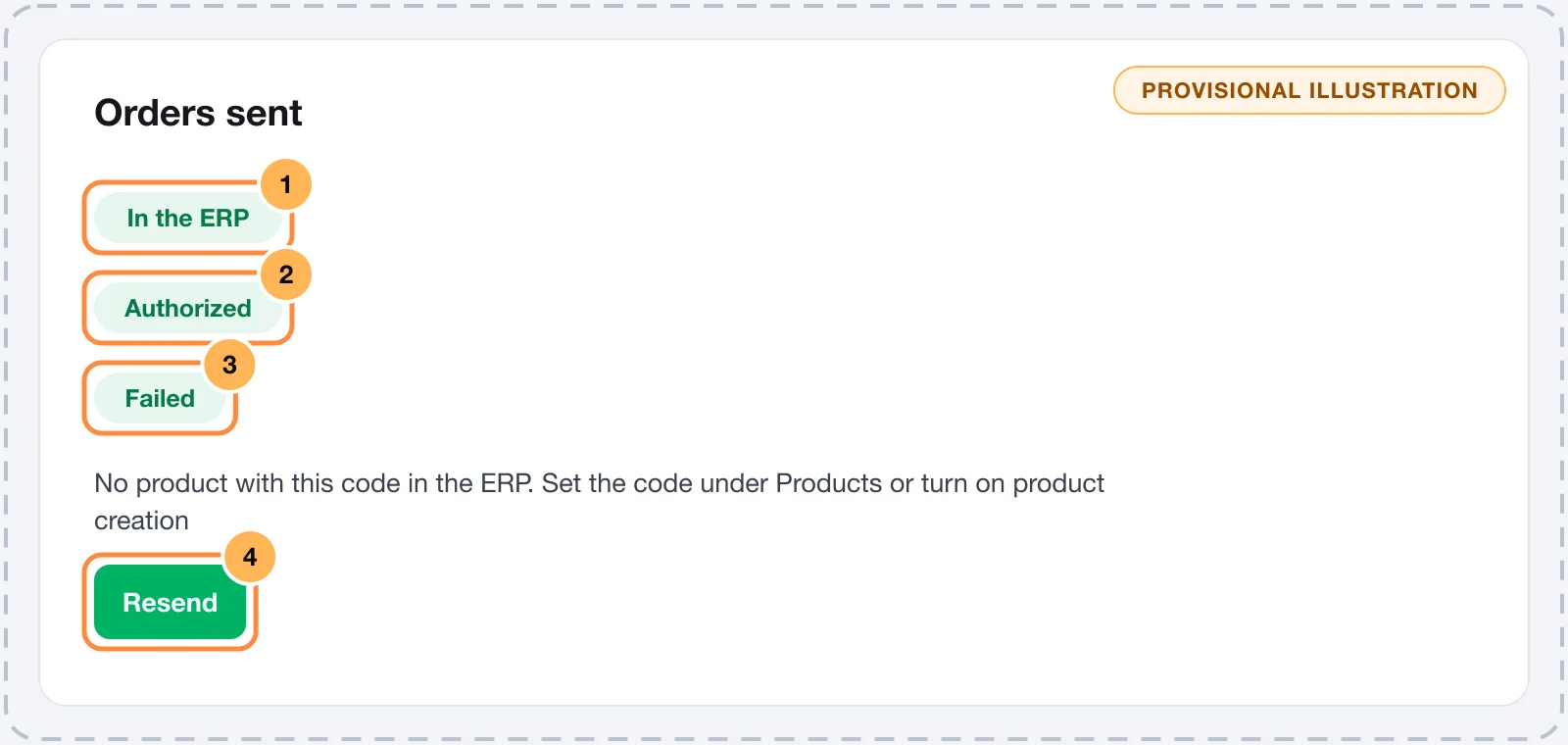
- Off, the default: the order becomes Failed, with No product with this code in the ERP. Set the code under Products or turn on product creation, followed by the product's code and name. This error does not repeat on its own. Register the product in the ERP or fix the code under Products and click Resend.
- On: Vipter creates a simple, active product in the ERP, with the name, code, price, unit, weight, dimensions, NCM and origin from the Vipter product. Review that product in the ERP afterwards.
NF-e and stock
Both are optional and live in the What to send card:
- Generate the NF-e in the ERP: the ERP generates the NF-e from the sales order, with the operation nature and taxes set up in it. On, two more switches show up:
- Transmit the NF-e to SEFAZ: on, the ERP transmits the invoice right away. Off, the invoice stays as a draft in the ERP for you to review and transmit there.
- ERP e-mails the NF-e to the customer: the ERP sends the authorized invoice to the buyer.
- Post the order's stock: Vipter posts the order's stock movement in the ERP, in the Warehouse ID warehouse or the ERP's default. Turn it on only if the ERP doesn't take stock out by itself when issuing the invoice, otherwise the stock goes out twice.
When the ERP generates the invoice, the number, series, access key and DANFE link come back to Vipter. The invoice shows as Processing, Authorized, Rejected, Cancelled or Failed.
Issue the invoice in one place only
If the store also issues invoices through Notazz, eNotas or PlugNotas, Vipter does not ask the ERP for a second invoice for an order the invoice integration already issued or is issuing: the order shows a notice that the invoice came from there. Still, pick one place to issue, because the order of events can vary and the invoice integration does not check the ERP.
Refund and chargeback
With Cancel in the ERP when the order is refunded on, the default:
- Full refund or chargeback: Vipter reverses the stock it posted itself and moves the sales order to cancelled.
- Partial refund: nothing changes in the ERP, because the goods may still ship.
- Order that never reached the ERP: the line is closed as cancelled, without calling the ERP.
Off, a refund changes nothing in the ERP.
An authorized NF-e is not cancelled
Neither Bling nor ERP Olist lets Vipter cancel an authorized NF-e. The sales order is cancelled and the line shows Order cancelled in the ERP. The NF-e was already authorized: cancel the invoice in the ERP itself. Cancel the invoice in the ERP itself, within SEFAZ's deadline, which is usually 24 hours after authorization. After the deadline, talk to your accountant about a return invoice.
Invoice and tracking coming back to Vipter
The ERP notifies Vipter when the sales order or the invoice changes, through the notification URL you register in it. Each ERP's page says where to register it.
- Tracking: when the sales order gets a tracking code in the ERP, Vipter marks the order as Shipped, with the carrier and the code, and the buyer gets the Order shipped e-mail. When the ERP reports the delivery, the order becomes Delivered. See Mark shipping and delivery.
- Carrier: the one the ERP reports or, without one, the integration's Carrier.
- NF-e: the number, series, key and DANFE, in the order's ERP card and in the list of orders sent.
What the team already marked wins. A delivered order never goes back to shipped, and the same tracking code does not send the e-mail again. An order without delivery in Vipter does not change status.
If a notification gets lost, Vipter asks the ERP every 3 hours, for up to 15 days after sending, while it waits for the tracking of an order that ships or for the NF-e. When notifications are arriving, the check happens every 12 hours. The Refresh button on the order asks right away.
Retries and Resend
When sending fails for a temporary reason, such as the ERP being down, slow, at its call limit or with an expired connection, Vipter tries again on its own, up to 6 attempts in total:
| Attempt | When |
|---|---|
| 1st | When the order is paid |
| 2nd | 5 minutes after the failure |
| 3rd | 30 minutes later |
| 4th | 2 hours later |
| 5th | 6 hours later |
| 6th | 24 hours later |
- Permanent errors don't repeat. When the ERP refuses data, such as a product without a record or an ID that does not exist, the first failure is the last.
- Nothing is duplicated. Before creating again a sales order that may have reached the ERP, Vipter looks for the order by the Vipter ID.
- Follow-up steps resume where they stopped. If the sales order was created and the stock or the NF-e failed, the line becomes In the ERP, with an issue, with the reason. The next attempt redoes only what was missing.
- Only with the integration active. With Integration active off, retries stop.
Lines that are Failed, Cancellation failed or In the ERP, with an issue have the Resend button, in the integration's Orders sent list and on the order card. It tries again right away, with the current settings and order data. Use it after fixing the cause: a product code, an address, the operation nature in the ERP.
The list of orders sent
At the end of the integration page, Orders sent shows the last 30 orders, newest first:
- the order, which leads to its page, and the state: Sending, In the ERP, In the ERP, with an issue, Failed, Cancellation failed or Cancelled;
- the sales order number in the ERP, such as Order #1042 in the ERP;
- the NF-e, with the state, number, series and DANFE link;
- the tracking code, the last error and, when there is one, how many attempts were made and when the next one is.
The ERP card on the order page
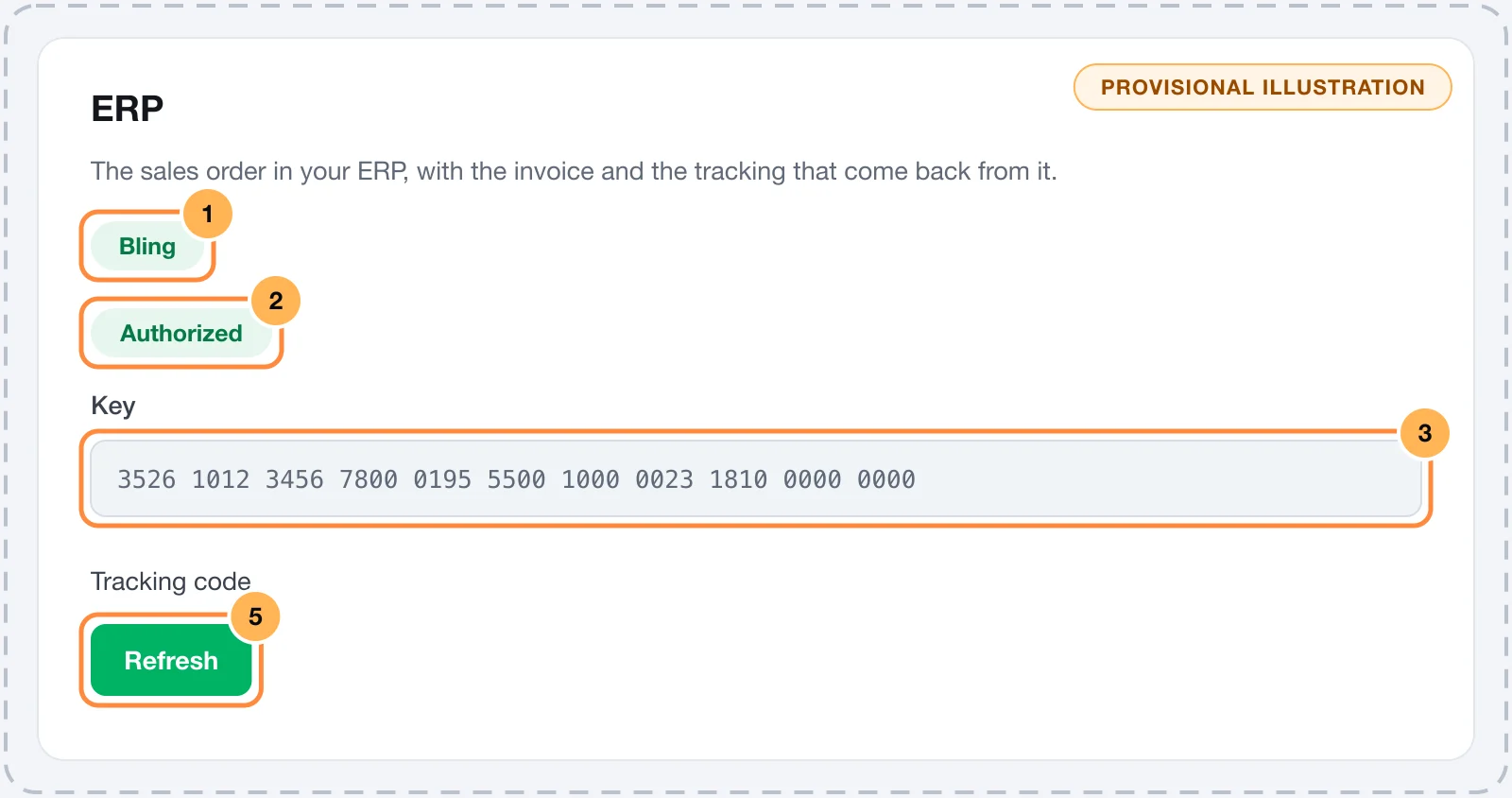
The order page gets the ERP card, in the right column, when the store has an active ERP or the order already went to an ERP. For each ERP it shows:
- the state and the sales order number in the ERP;
- when the order was sent and, if that is the case, stock posted;
- the NF-e, with the state, number, series, DANFE link and the Key, with a copy button;
- the tracking code, the last error and the next attempt.
The buttons:
- Refresh: asks the ERP right away for the tracking and the invoice. Any role can use it.
- Resend: on lines with a failure or an issue. Admin and Owner.
- Send to Bling: for an active ERP that has not received the order yet, for example an order paid before the integration or left out by the Orders sent field. It only works on paid orders. Admin and Owner.
The Sales role only sees the card when the order already went to some ERP.
Limitations
- The order goes one way only. Changing items, amounts or the customer in the sales order does not change the order in Vipter. Changing the order in Vipter after sending does not change the ERP.
- Only the invoice and the tracking come back from the ERP. The ERP's stock does not come back to Vipter, and cancelling the order in the ERP does not refund the sale.
- A cancelled sales order is not recreated. Not even with the Resend button.
- An authorized NF-e is cancelled in the ERP, by your team.
- Orders in reais only.
- Removing the integration deletes the history of orders sent in Vipter. The orders already in the ERP stay there.
Common problems
-
No product with this code in the ERP. Set the code under Products or turn on product creation
The ERP has no active product with the code in the error. Register the product in the ERP with that code, or set the right code under Products and click Save codes. Then click Resend.
-
The order has no complete delivery address.
The order has a product that ships and no complete address: street, CEP, city and state. Open the order, click Edit address in the Delivery card, complete the address and click Resend.
-
The customer has no name or e-mail.
Open the customer under SalesCustomers, click Edit, fill in the name and resend the order.
-
The ERP authorization expired. Reconnect and the order is resent.
Open the ERP page and click Reconnect. Orders that still have attempts left go on their own. The ones that used up the 6 attempts need Resend.
-
The order became In the ERP, with an issue
The sales order is in the ERP, but the stock or the NF-e failed. The ERP's message shows below, such as a missing operation nature or tax setting. Fix it in the ERP and click Resend: Vipter redoes only the missing step.
-
The NF-e became Rejected
SEFAZ refused the invoice. The reason is in the ERP. Fix it there and transmit again from the ERP itself. Vipter shows the new state on the next notification or when you click Refresh.
-
The order did not go to the ERP
Check that the order is paid, that it ships when the Orders sent field is Only orders that ship, that the integration is active and connected and, for a quick link, that the products were already composed. To send it anyway, use Send to Bling on the order.
-
The order did not become shipped
The sales order needs a tracking code in the ERP. Check that the notifications are registered in the ERP and click Refresh on the order. Without notifications, Vipter checks every 3 hours.
What to do next
- Connect Bling or ERP Olist.
- Fill in weight, dimensions and tax data on the products.
- See what the buyer gets when the order ships in Mark shipping and delivery.
Generate labels and follow tracking
Buy the Melhor Envio or SuperFrete label on the order page, with a content declaration or the NF-e key, and let tracking mark the order as shipped and delivered.
Connect Bling
Send each paid order to Bling as a sales order, with optional NF-e and stock, and get the invoice and the tracking back, through Vipter's app or an app of your own.