Connect Google Sheets
Write a row to a Google spreadsheet on every sale event, with an Apps Script you deploy on your own account, without signing in to Google in Vipter.
With Google Sheets connected, each sale event becomes a row in a spreadsheet of yours: PIX generated (PIX is Brazil's instant payment), order paid, decline, shipment, subscription, abandoned checkout. The spreadsheet receives data that only Vipter has, such as phone, tax ID, address and UTMs, and helps you check sales, build your own reports or feed other tools.
The connection is made through a Google Apps Script that you paste into the spreadsheet and deploy on your account. Vipter does not ask for a Google sign-in and has no access to your Drive: it only calls the script's address with a secret that both of you know.
Before you start, read how automations work.
Before you start
- A Google account and a new or existing spreadsheet in Google Sheets.
- The Admin or Owner role in the Vipter project.
How the spreadsheet looks
- One tab per event, named after it:
PIX gerado,Pedido pago,Checkout abandonadoand so on. To write everything to a single tab, fill inSINGLE_SHEETin the script (step 2). In that case, theeventocolumn tells the rows apart. - Automatic header: the first row of an empty tab gets the field names of the sale record. A new field becomes a new column at the end. Columns you move or add by hand stay where they are.
- No duplicate rows: an event that arrives again, in a retry or a resend, is not written twice. The script checks the
id_eventocolumn. - Cells ready to use: dates become real dates. The PIX code, the postal code (CEP) and a phone with
+stay as text, so Sheets does not turn them into numbers. A text that starts with=,+,-or@, such as a name typed that way on purpose, also stays as text and never becomes a formula.
Step 1: copy the script in Vipter
- In the Vipter dashboard, open GeneralIntegrationsAutomationsGoogle Sheets.
- Under Spreadsheet script, click Copy script. You see Script copied.
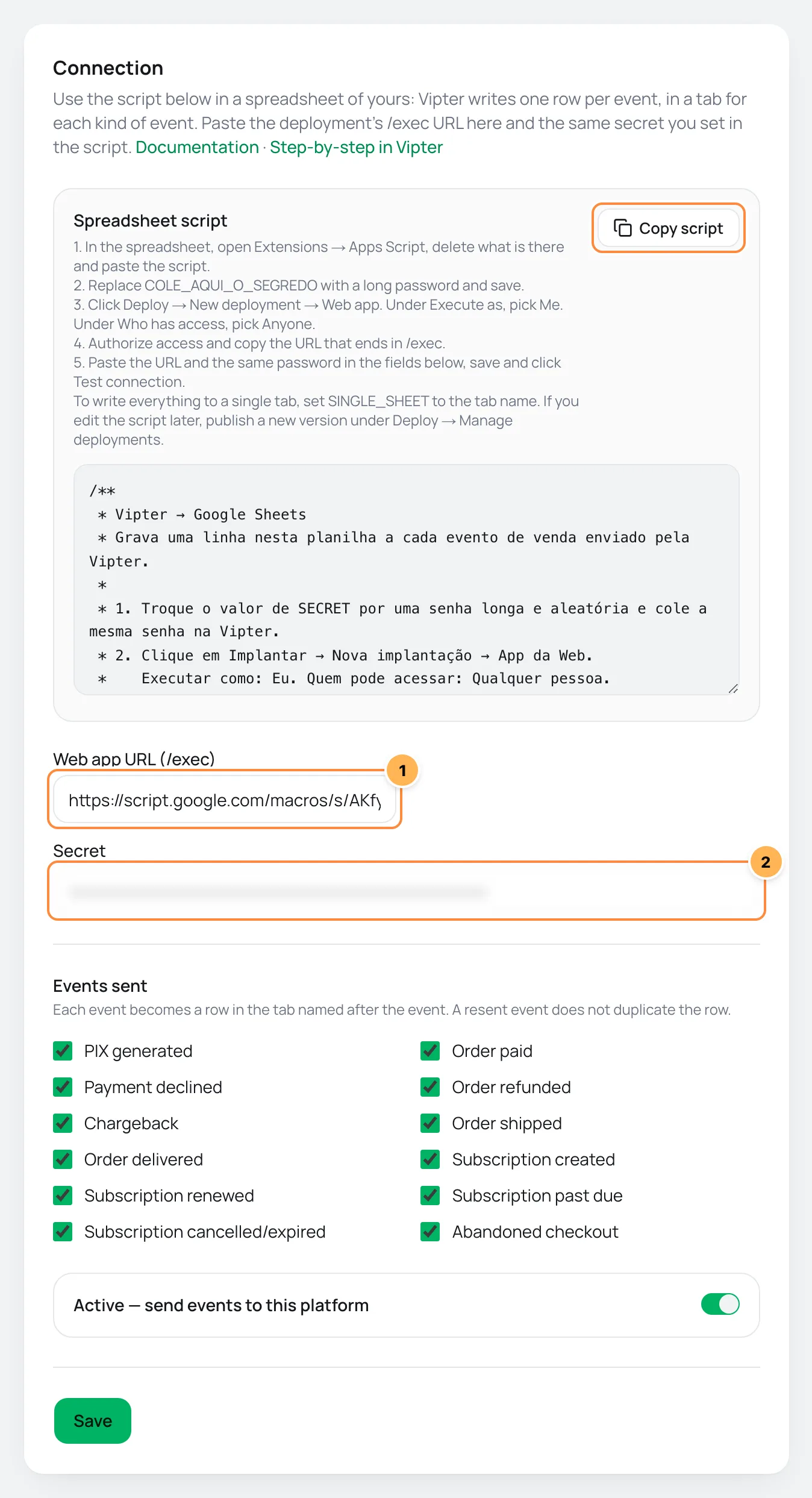
If the browser does not allow copying, the dashboard selects the script so you can copy it with Ctrl+C or ⌘C.
Step 2: paste the script into the spreadsheet
- Open the spreadsheet in Google Sheets and go to ExtensionsApps Script.
- Delete the editor's content and paste the script.
- On the line
var SECRET = 'COLE_AQUI_O_SEGREDO';, replaceCOLE_AQUI_O_SEGREDOwith a long, random password of 30 characters or more. Keep this password for step 4. - Optional: to write everything to a single tab, change
var SINGLE_SHEET = '';to a name, such asvar SINGLE_SHEET = 'Vendas';. - Save the project.
The secret is what protects the spreadsheet
The script's address accepts calls from anyone: the secret is what stops a stranger from writing rows to your spreadsheet. Use a password you don't use anywhere else. Anyone who can edit the spreadsheet can open Apps Script and see the secret, so give edit access only to those who need it.
Step 3: deploy as a web app
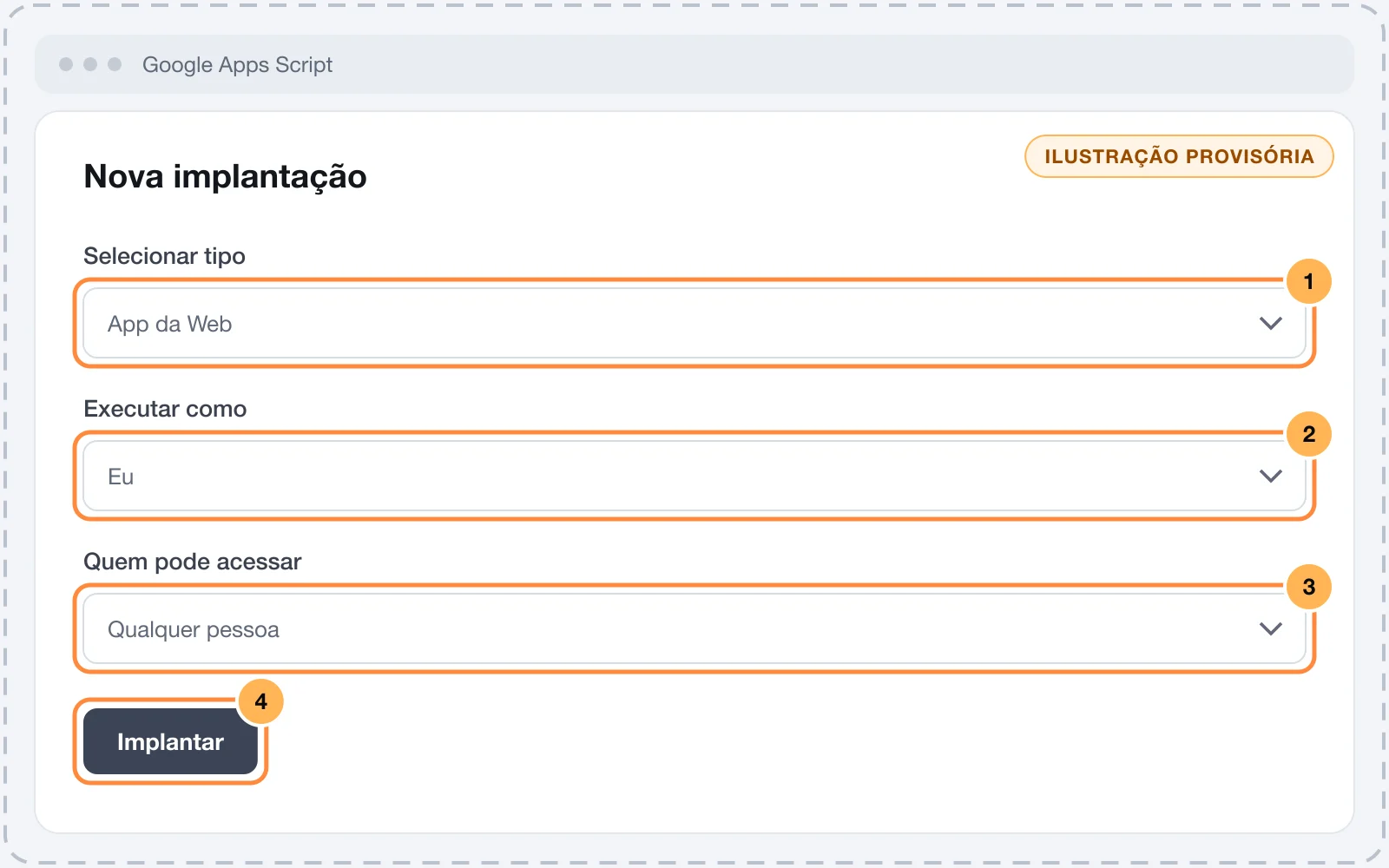
- In Apps Script, click DeployNew deployment.
- Under Select type, choose Web app.
- Under Execute as, choose Me. Under Who has access, choose Anyone.
- Click Deploy and authorize access with your Google account. If Google warns that the app is not verified, it is your own script: open Advanced and continue.
- Copy the Web app URL. It ends in
/exec.
To check that the deployment is live, open the URL in your browser. The response is {"ok":true,"vipter":true}, with no data from the spreadsheet.
Step 4: connect in Vipter
- Back in Vipter, under Connection, fill in the numbered fields.
| # | Field | What to paste |
|---|---|---|
| 1 | Web app URL (/exec) | The Web app URL you copied in step 3, ending in /exec. |
| 2 | Secret | The same password you put in SECRET in step 2. |
- Under Events sent, uncheck what you don't want in the spreadsheet.
- Leave Active — send events to this platform on and click Save.
- Click Test connection. The script checks the secret and answers without writing anything to the spreadsheet.
It worked if
You see Connection works. Then generate a PIX at the checkout of an offer: the PIX gerado tab shows up in the spreadsheet with the header and one row, and the event shows as sent under Recent deliveries.
Change the script or the secret later
- You edited the script: publish a new version in DeployManage deployments, using the edit pencil, with Version: New version. Without this, the old version keeps running. The URL does not change.
- You created another deployment: a new deployment has a different URL. Paste the new URL into Vipter and save.
- You changed the secret: change it in the script, publish a new version and save the same password in Vipter. While the two are different, events fail with
invalid_secret.
Deliveries, retries and resend
- sent: the row was written, or it already existed.
- failed: the script rejected it or Google did not answer. When the spreadsheet is busy or Sheets returns an error, Vipter tries again on its own after 5 minutes, 30 minutes, 2 hours, 6 hours and 24 hours. A wrong secret and a misconfigured deployment are not retried: fix the cause and use Resend.
Resending is safe: the row is only written if it is not in the tab yet. See retries and resend.
Common problems
-
The delivery failed with "the Apps Script did not answer JSON"
The deployment is not set to Anyone, or the URL is not the one ending in
/exec. Google answered with the sign-in page instead of the script. Check step 3 and paste the/execURL. -
The delivery failed with "Apps Script: invalid_secret"
The password in Vipter is different from the one in the script, or the script was edited without publishing a new version. Check both sides.
-
The delivery failed with "Apps Script: secret_not_configured"
The script still has
COLE_AQUI_O_SEGREDO. Replace it with the password, save and publish a new version. -
A new column showed up at the end of the tab
Vipter started sending a new field. Fields never change their names or disappear, so the columns you already use stay correct.
What to do next
- See what each column means in the sale record.
- To receive the events in your own system, with signatures and retries, use webhooks.
Connect Reportana
Send PIX generated, payments, shipments with tracking, declined cards and abandoned checkouts to Reportana so it recovers sales and keeps the buyer informed.
Connect ActiveCampaign
Create and update the contact in ActiveCampaign on every sale event, apply tags per event and per offer, and subscribe the buyer to a list without overriding anyone who unsubscribed.