Connect ManyChat
Find or create the contact in ManyChat on every sale event, fill in custom fields such as the PIX code and the tracking, apply tags and fire flows per event or per offer.
With ManyChat connected, every Vipter sale event finds the buyer's contact in ManyChat, or creates a new one, fills in the custom fields you created, applies the tags and fires the flow you chose for that event. For example, a generated PIX (Brazil's instant payment) can become the pix-pendente tag and a reminder flow with the copy-and-paste code.
Before you start, read how automations work.
Before you start
- A ManyChat account on the Pro plan. The ManyChat API only answers for Pro accounts.
- The flows that should run already created in ManyChat.
- The Admin or Owner role in the Vipter project.
- The checkout asking for the buyer's phone or e-mail. For WhatsApp flows, ask for the phone.
Step 1: generate the API token in ManyChat
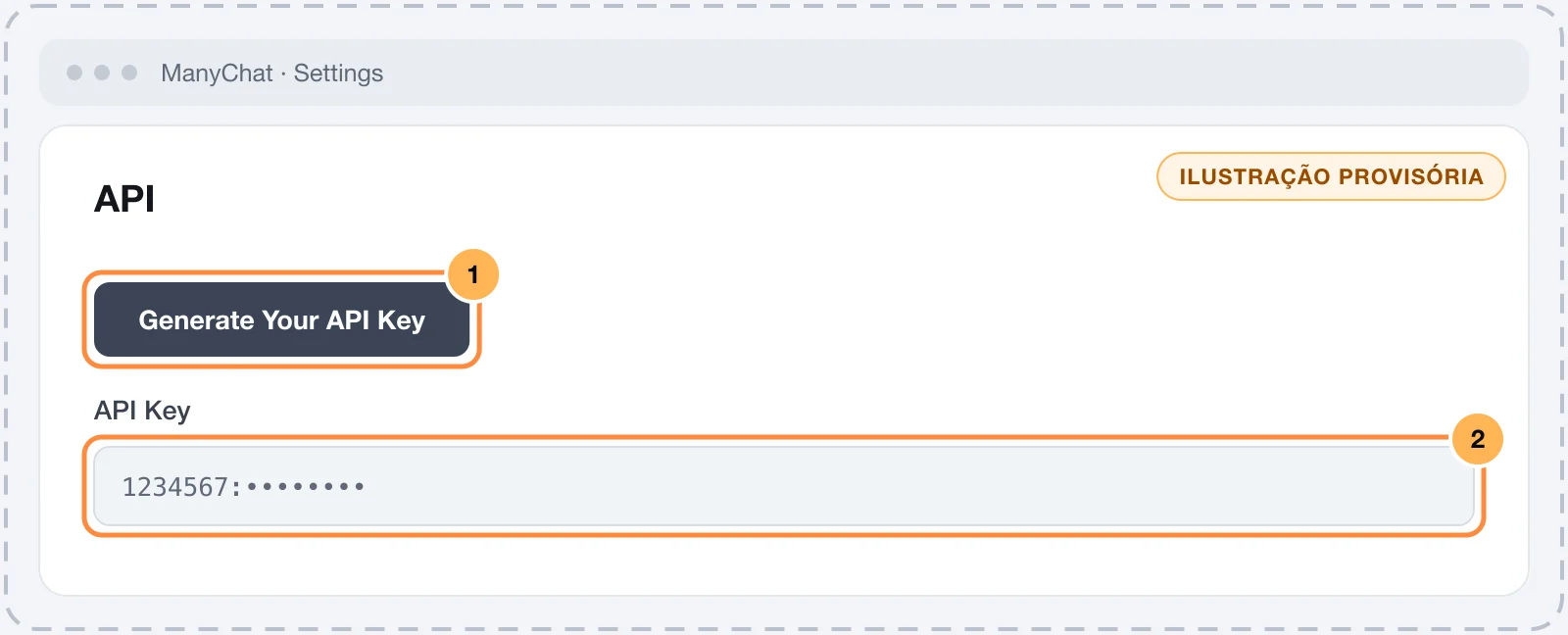
- In ManyChat, open SettingsAPI.
- Generate a token and copy it. It has the format
1234567:a1b2c3….
Keep the token safe
This token can read and change your account's contacts and fire flows. Paste the token only into Vipter. Once saved, the field only shows its last characters.
Step 2: create the custom fields in ManyChat
Vipter fills in the ManyChat custom fields that have the same name as a field of the sale record. In ManyChat, create only the ones your flows will use. The most common:
| Field in ManyChat | Type | What it receives |
|---|---|---|
pix_copia_e_cola | Text | The code of the generated PIX |
link_recuperacao | Text | The link to resume the purchase on a generated PIX, a declined card and an abandoned checkout |
produto | Text | The product and the pack or offer, such as Curso X · Oferta à vista |
valor | Text | The amount ready for the message, such as R$ 169,00 |
valor_decimal | Number | The amount as a number, such as 169 |
codigo_rastreio | Text | The tracking code, on the shipped order |
url_rastreio | Text | The tracking link, on the shipped order |
pago_em | Date and time | When the payment was approved |
The name must be the same, and upper or lower case does not matter. A field that does not exist in ManyChat is not sent, and an empty value does not erase what the field already has. A value that does not fit the field's type is also left out: valor in a Number field, for example. For numbers, use valor_decimal.
Step 3: connect in Vipter
- In the Vipter dashboard, open GeneralIntegrationsAutomationsManyChat.
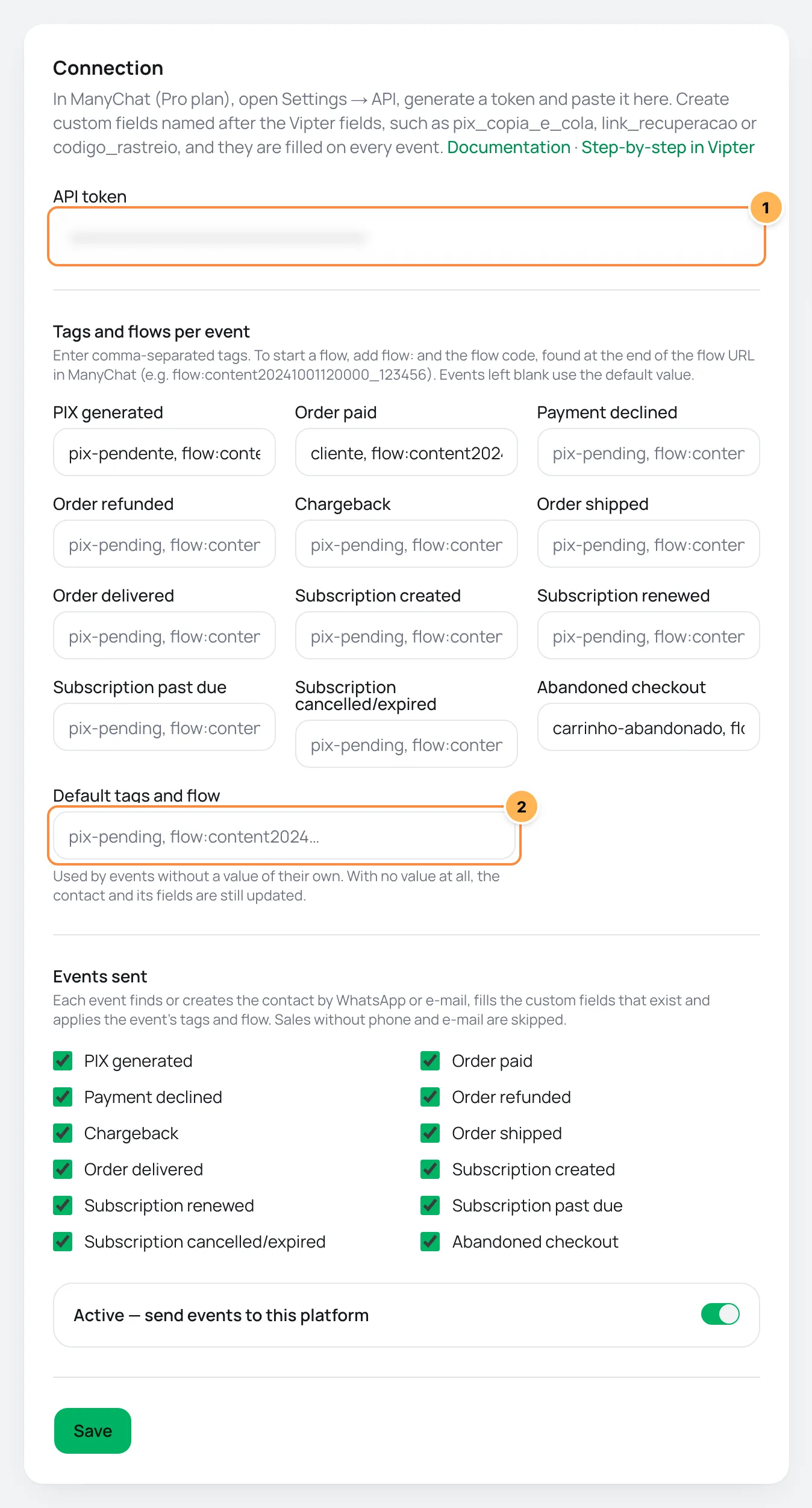
- Under Connection, fill in the numbered fields.
| # | Field | What to paste |
|---|---|---|
| 1 | API token | The token you generated in step 1. |
| 2 | Default tags and flow | The tags and the flow for the events left blank below. It can stay empty. |
- Under Tags and flows per event, enter what each event does in ManyChat. See the format right below.
- Under Events sent, uncheck what you don't want to send.
- Leave Active — send events to this platform on, click Save and then Test connection.
How to write the tags and the flow
Each field accepts tag names separated by commas and, to fire a flow, flow: followed by the flow code. The code is the end of the flow's address in ManyChat, such as content20241001120000_123456.
| Event | Example value |
|---|---|
| PIX generated | pix-pendente, flow:content20241001120000_123456 |
| Order paid | cliente, flow:content20241001120500_234567 |
| Payment declined | cartao-recusado, flow:content20241001121000_345678 |
| Abandoned checkout | carrinho-abandonado, flow:content20241001121500_456789 |
| Order shipped | flow:content20241001122000_567890 |
A tag that does not exist yet in ManyChat is created on the spot. Events without a value of their own use the Default tags and flow. With no value at all, the contact and the fields are still updated, which is already enough for a ManyChat rule that fires when a field changes.
Step 4: use tags and a flow per offer (optional)
Do this step when a product needs a tag or a flow of its own.
- Under Tags per offer, pick the Offer.
- Enter the Tags and flow, such as
curso-xorcurso-x, flow:content20241001123000_678901. - Click Add rule.
The rule's tags are added to the event's tags. If the rule has a flow:, that flow starts instead of the event's flow. The rule applies to every event of the offer, and also to the other offers of the same product. For example: with pix-pendente, flow:…_123456 on PIX generated and the curso-x rule on the offer, a PIX generated for Curso X gets the pix-pendente and curso-x tags and fires the PIX flow.
What happens on each event
- Contact: Vipter looks up the contact by phone and then by e-mail. If it finds none, it creates a contact with the name, the WhatsApp number and the e-mail. The e-mail goes in without marketing consent, because the checkout does not collect that consent, and the number does not go in as SMS. An existing contact keeps its name and permissions.
- Fields: the custom fields named after a Vipter field receive the event's values.
- Tags: the event's tags, plus those of the offer rule.
- Flow: the offer rule's flow, if it has one, or the event's flow.
The fields come before the flow, so the flow's message already shows the PIX code or the tracking. Tags are never removed: use refund or cancellation tags in your ManyChat automations.
The WhatsApp rules still apply
ManyChat delivers the flow under its own rules and WhatsApp's. A message to someone who has not talked to you recently may require an approved template. Check in ManyChat how your flow starts.
Deliveries, retries and resend
Each event shows up under Recent deliveries:
- sent: contact found or created, fields, tags and flow applied. A field that ManyChat rejected does not change the status: the delivery still counts as sent.
- skipped: the sale has no phone and no e-mail (
customer has no phone and no e-mail). - failed: a step failed. The reason starts with the step's name, such as
addTagByName "cliente",sendFlow …orcreateSubscriber. Temporary failures, such as ManyChat being down or a rate limit, get automatic retries. A rejection from ManyChat, such as a flow that does not exist, is not repeated.
After you fix the cause, use Resend. See retries and resend.
Common problems
-
The platform refused the credentials with "this ManyChat account is not Pro"
The ManyChat account is not on the Pro plan. The API only works on Pro.
-
The custom field was not filled in
Check that the name matches the Vipter field, such as
pix_copia_e_cola, and that the type accepts the value. The field also stays as it is when the event does not have that data: a generated PIX has no tracking, for example. -
The delivery failed at
sendFlowThe flow code is wrong or the flow is not published. Copy the end of the flow's address again and check the
flow:in the event's or the rule's value. -
The delivery failed at
createSubscribersaying the contact already existsThe contact exists in ManyChat with WhatsApp only, and the phone lookup did not find it. Check that the number in ManyChat has the country code. Then use Resend.
What to do next
- See all the fields of the sale record.
- Understand values per event and offer rules.
Connect BotConversa
Send every PIX generated, sale, decline, shipment, subscription and abandoned checkout to a BotConversa webhook and fire WhatsApp flows with the buyer's data.
Connect SellFlux
Send every sale event to a SellFlux Custom integration, with phone, PIX code, recovery link and tracking, and build the recovery automations there.