Connect SellFlux
Send every sale event to a SellFlux Custom integration, with phone, PIX code, recovery link and tracking, and build the recovery automations there.
With SellFlux connected, Vipter sends each sale event to a SellFlux Custom integration webhook: PIX generated (PIX is Brazil's instant payment), sale approved, decline, shipment, subscription and abandoned checkout. You map the lead fields once and build the recovery and post-sale automations in SellFlux.
Before you start, read how automations work.
Before you start
- A SellFlux account with access to IntegraçõesWebhooks (Integrations › Webhooks).
- The Admin or Owner role in the Vipter project.
- The checkout asking for the buyer's phone or e-mail. SellFlux needs one of the two.
Step 1: create the Custom integration in SellFlux
- In SellFlux, open IntegraçõesWebhooksNova Integração (Integrations › Webhooks › New integration).
- Choose Custom and copy the webhook URL.
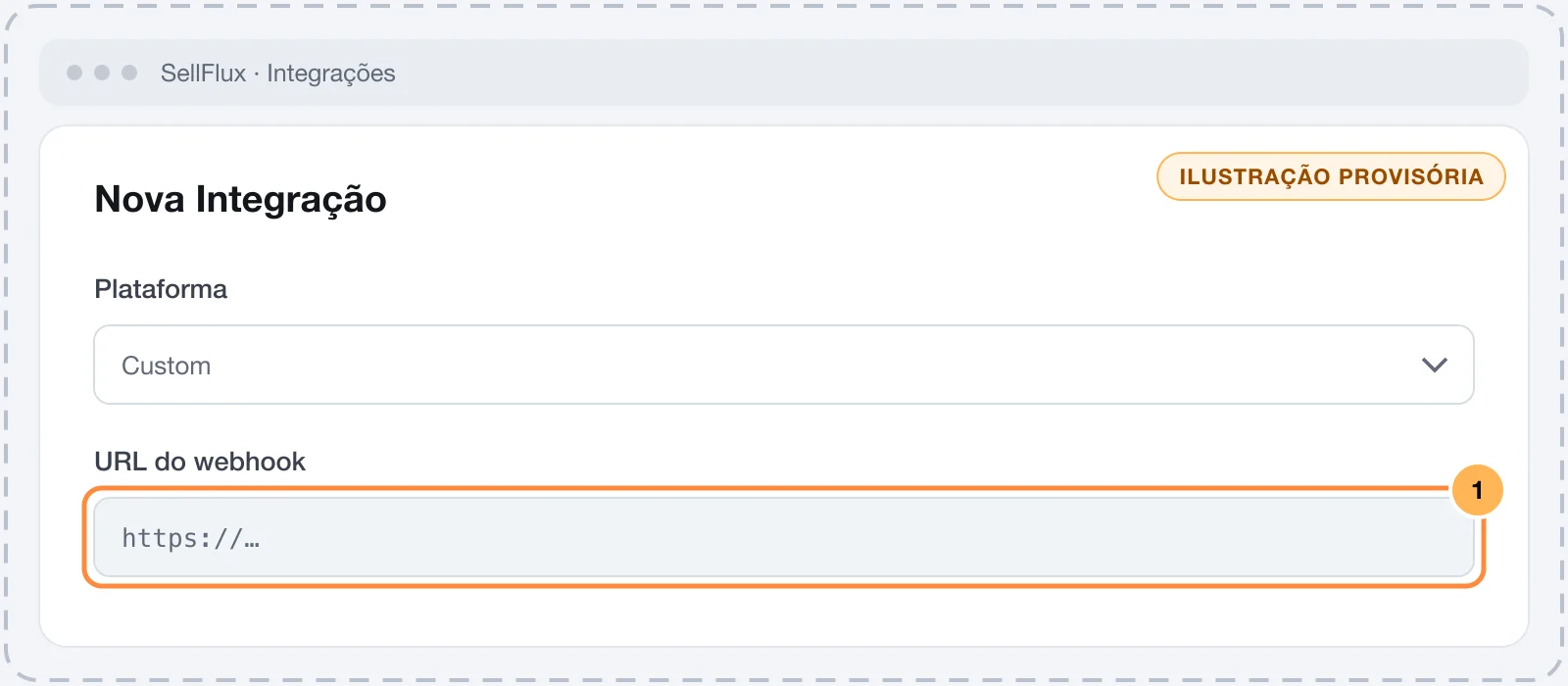
The URL works like a password
Anyone with the URL can create leads and fire automations in your account. Paste the URL only into Vipter.
Step 2: connect in Vipter
- In the Vipter dashboard, open GeneralIntegrationsAutomationsSellFlux.
- Under Connection, fill in the field.
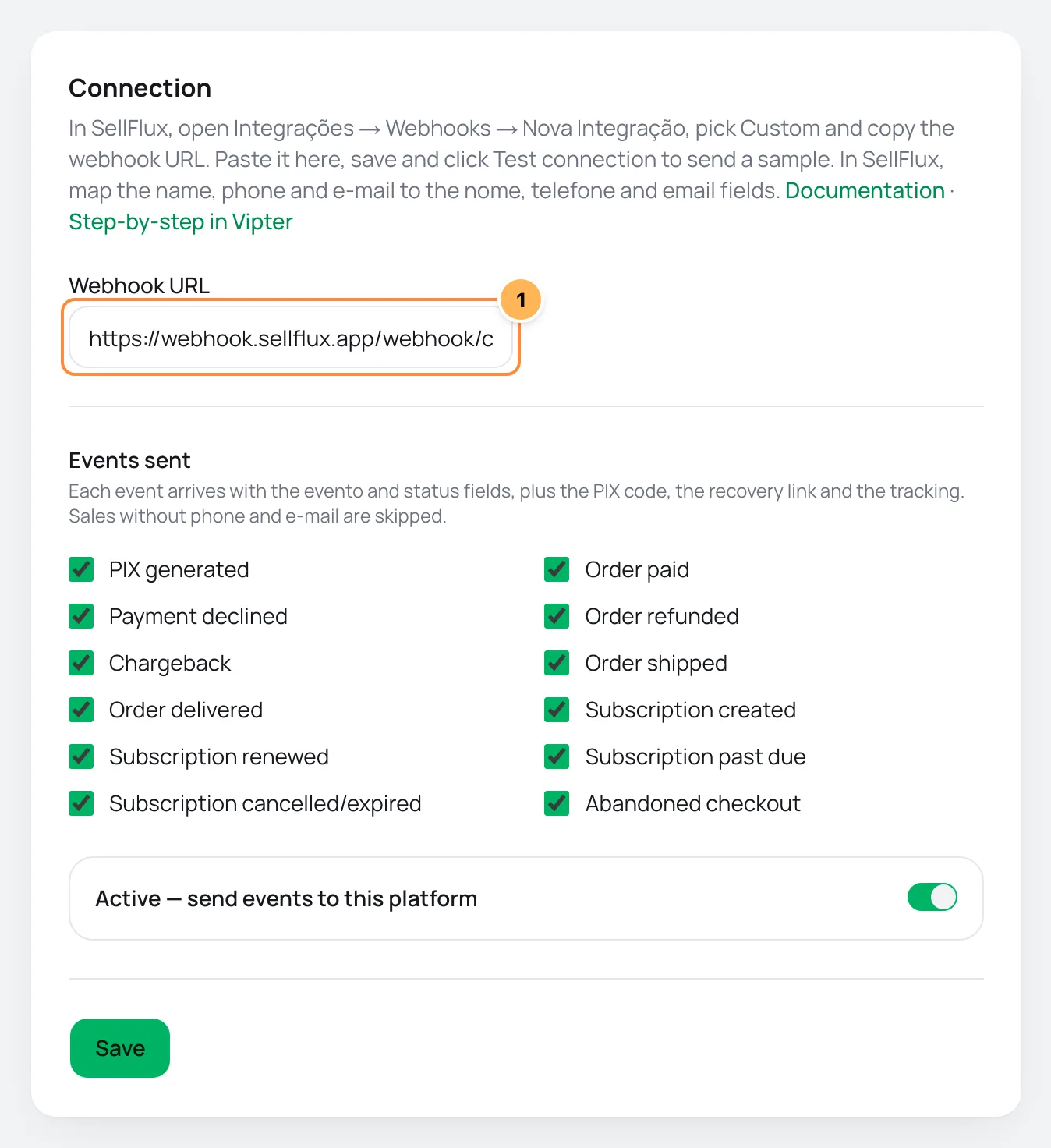
| # | Field | What to paste |
|---|---|---|
| 1 | Webhook URL | The webhook URL of the Custom integration, copied in step 1. It must start with https://. |
- Under Events sent, uncheck what you don't want to send.
- Leave Active — send events to this platform on and click Save.
Step 3: send a sample and map the lead
- Click Test connection. Vipter sends a sample with every field.
- In SellFlux, open the Custom integration and map the lead fields. For each one, the source path is the name of the Vipter field itself:
| Lead field in SellFlux | Source path |
|---|---|
| Nome (Name) | nome |
| Telefone (Phone) | telefone |
email |
- Also map the custom fields your messages will use, such as
pix_copia_e_cola,link_recuperacao,produto,valorandcodigo_rastreio.
The sample carries evento: "teste", a phone with area code 00 and an example.com e-mail, so that nobody gets a message because of it. The full list is in the sale record.
Step 4: build the automations
Every event arrives at the same integration. Split the automations by the evento field or the status field:
evento | status | Common use |
|---|---|---|
pix_generated | pendente | PIX reminder with the pix_copia_e_cola |
order_paid | pago | Welcome and access |
order_failed | recusado | Declined card recovery with the link_recuperacao |
checkout_abandoned | abandonado | Cart recovery with the link_recuperacao |
order_shipped | enviado | Shipping notice with the codigo_rastreio and the url_rastreio |
subscription_dunning | em_atraso | Past-due subscription notice |
SellFlux does not use offer rules in Vipter. To handle a product separately, use produto_id or oferta_id in a condition of the automation.
Step 5: test with a purchase
Open the checkout of an offer, fill it in with your e-mail and your phone and generate a PIX, without paying. Then reload the SellFlux page in Vipter.
It worked if
The PIX generated event shows as sent under Recent deliveries, and the lead shows up in SellFlux with the PIX code.
What SellFlux receives
Each event arrives with the evento and status fields, plus the PIX code, the recovery link and the tracking. Sales without phone and e-mail are skipped.The body is the sale record, the same one BotConversa gets: fields at the root of the JSON, with Portuguese names that never change. The phone goes with the + in telefone and with digits only in telefone_numeros.
Deliveries, retries and resend
- sent: SellFlux answered with success.
- skipped: the sale has no phone and no e-mail (
customer has no phone and no e-mail). - failed: SellFlux rejected it or did not answer. Temporary failures get automatic retries after 5 minutes, 30 minutes, 2 hours, 6 hours and 24 hours.
After you fix the cause, use Resend on the event's row. See retries and resend.
Common problems
-
Enter an https:// URL
The URL must start with
https://. Copy it again from the Custom integration. -
The lead arrived without a name or a phone
The mapping from step 3 was not done or points to another path. Use exactly
nome,telefoneandemail. -
The event failed with 404
The Custom integration was deleted in SellFlux. Create another one, save the new URL in Vipter and resend the events that failed.
What to do next
- See all the fields of the sale record.
- Recover carts with the abandoned checkout.
Connect ManyChat
Find or create the contact in ManyChat on every sale event, fill in custom fields such as the PIX code and the tracking, apply tags and fire flows per event or per offer.
Connect Reportana
Send PIX generated, payments, shipments with tracking, declined cards and abandoned checkouts to Reportana so it recovers sales and keeps the buyer informed.