Connect HubSpot
Create and update the contact in HubSpot on every sale event, mark buyers who paid as customers and open a deal for each paid order, in the pipeline and stage you choose.
With HubSpot connected, every Vipter sale event creates or updates the buyer's contact by e-mail. When the payment comes in, the contact becomes a customer, and each paid order becomes a deal associated with them, with the purchase amount and date. Your sales team sees everything in the CRM without typing anything.
Before you start, read how automations work.
Before you start
- A HubSpot account with permission to create private apps.
- The Admin or Owner role in the Vipter project.
Step 1: create a private app in HubSpot
- In HubSpot, open SettingsIntegrationsPrivate Apps and click Create a private app.
- Give it a name, such as
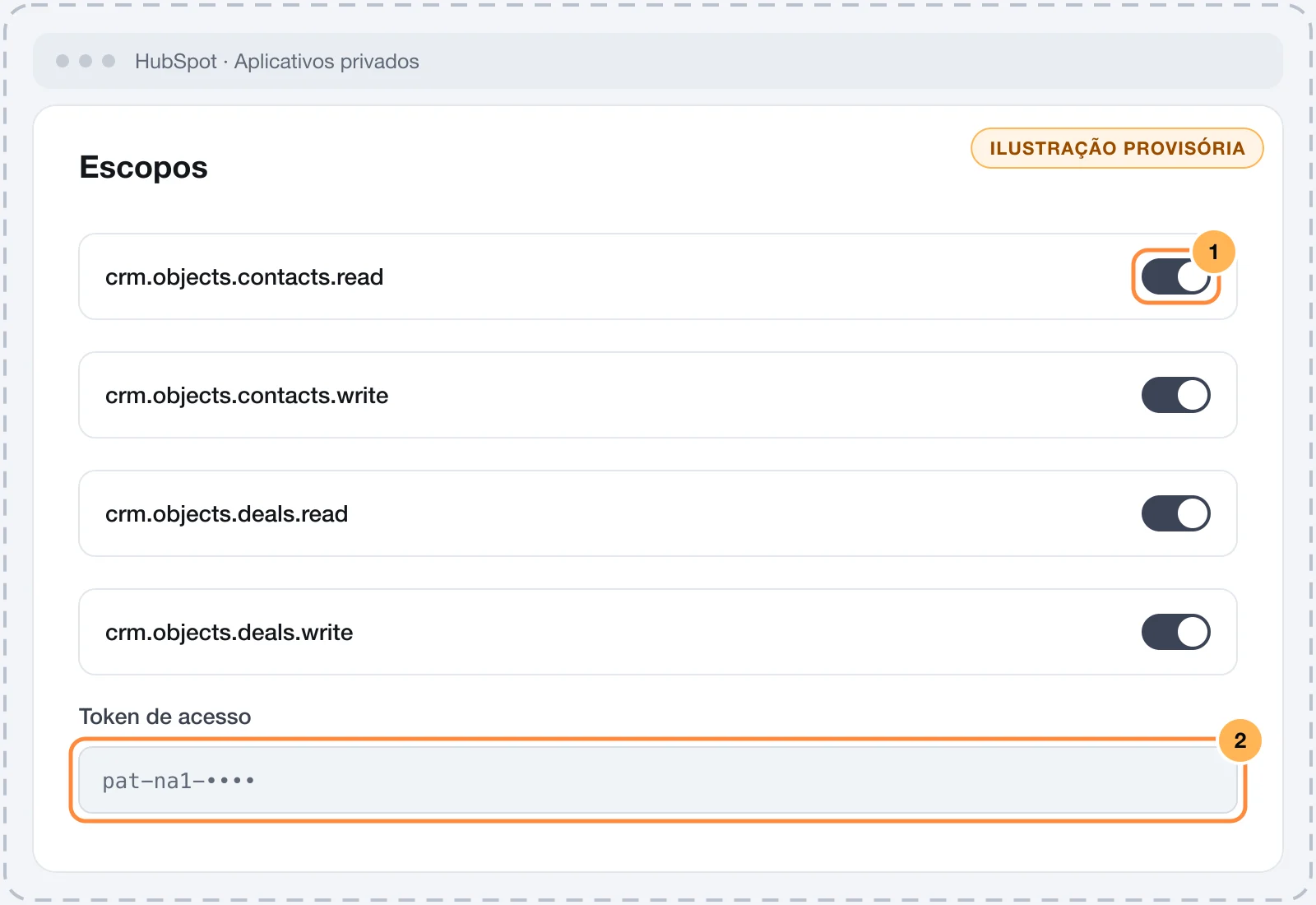
Vipter. - On the Scopes tab, check these four:
crm.objects.contacts.readcrm.objects.contacts.writecrm.objects.deals.readcrm.objects.deals.write
- Create the app and copy the access token. It starts with
pat-.
HubSpot changes its menus from time to time. If you can't find the item, search for "private apps" in the settings search.
Keep the token safe
This token can read and change the contacts and deals in your CRM. Paste it only into Vipter. Once saved, the field only shows its last characters.
Step 2: connect in Vipter
- In the Vipter dashboard, open GeneralIntegrationsCRM and email marketingHubSpot.
- Under Connection, fill in the numbered fields.
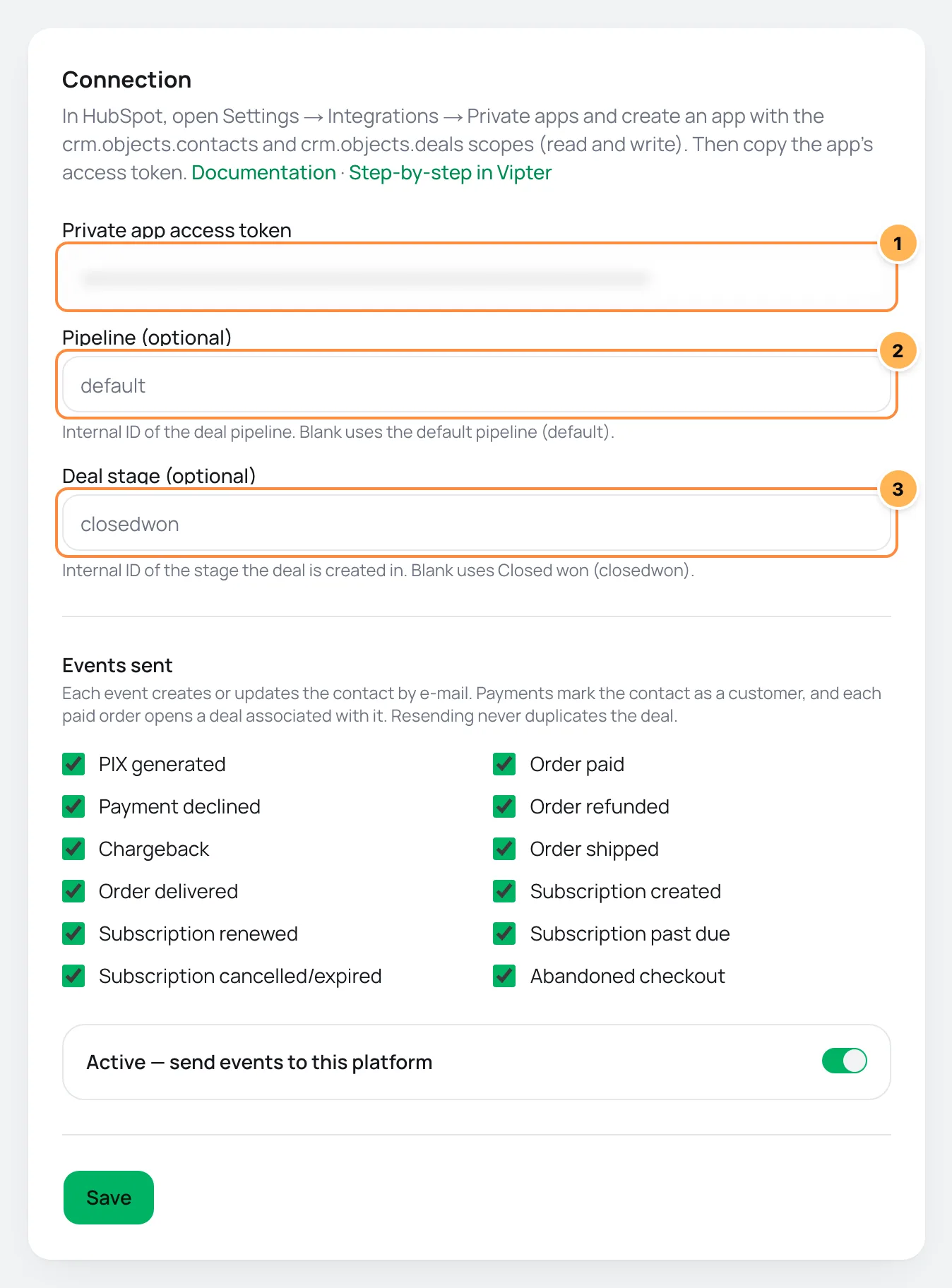
| # | Field | What to paste |
|---|---|---|
| 1 | Private app access token | The private app access token, copied in step 1. |
| 2 | Pipeline (optional) | The internal ID of the deals pipeline. Left blank, the deal goes to the default pipeline (default). |
| 3 | Deal stage (optional) | The internal ID of the stage the deal starts in. Left blank, the stage is Closed won (closedwon). |
- Under Events sent, uncheck what you don't want to send.
- Leave Active — send events to this platform on, click Save and then Test connection.
The pipeline and the stage ask for the internal ID, which is different from the name shown on screen. The IDs are in the deals pipeline settings in HubSpot. In the default pipeline, the IDs are already default and closedwon, and you can leave both fields blank.
HubSpot does not use values per event or offer rules: what changes from one event to another is what happens to the contact, described below.
What happens on each event
| Event | In HubSpot |
|---|---|
| Any event | The contact is created or updated by e-mail, with first name, last name, phone with country code and address. A blank field does not erase what your team already filled in. |
| Order paid, Subscription created, Subscription renewed, Order shipped, Order delivered | The contact also moves to the Customer lifecycle stage. A contact already at a stage after Customer, such as Evangelist, stays where it is. |
| Order paid | A new deal, associated with the contact, named Produto · Pedido <número> (product · order number), with the order's amount, payment date, pipeline, stage and currency. |
- Each paid order becomes a deal, including subscription renewals, which are new orders.
- The deal keeps
Pedido Vipter <número>in its description. That is how Vipter knows the deal for that order already exists: a retry or a resend does not create another one. - If the HubSpot account doesn't have the order's currency, the deal is created in the account's currency.
Test with a purchase
- Click Test connection. Vipter looks up a contact with the saved token.
- Make a test purchase of an offer, with your e-mail.
It worked if
You see Connection works, the Order paid event shows as sent under Recent deliveries, and HubSpot shows the contact as a Customer, with the order's deal associated.
Deliveries, retries and resend
- sent: contact and, on the paid order, deal created or already existing.
- skipped: the sale has no e-mail (
customer has no e-mail). - failed: a step failed. The reason starts with the step:
contact,deal searchordeal. A refusal from HubSpot, such as a missing scope, is not retried. Temporary failures get automatic retries.
After you fix the cause, use Resend. See retries and resend.
Common problems
-
The platform refused the credentials with code 401
The token is wrong or the private app was deleted. Copy the token again and save.
-
The contact is created, but the paid order fails at
deal searchordealwith 403The app doesn't have the deals scopes. Add
crm.objects.deals.readandcrm.objects.deals.writeto the private app and use Resend. -
The paid order fails at
dealwith 400The pipeline or the stage doesn't exist with that ID. Use the internal ID, not the name, and check that the stage belongs to the pipeline you entered.
What to do next
- See the events sent and when each one goes out.
- To receive all the order data in a system of your own, use webhooks.
Connect RD Station Marketing
Record every sale event as a conversion in RD Station Marketing, with the identifier you choose per event, and add tags per offer on purchases.
Connect Mailchimp
Add the buyer to your Mailchimp audience on every sale event, with tags per event and per offer and e-mail confirmation for anyone who is not a contact yet.