Connect RD Station Marketing
Record every sale event as a conversion in RD Station Marketing, with the identifier you choose per event, and add tags per offer on purchases.
With RD Station Marketing connected, every Vipter sale event becomes a conversion in RD Station, with the identifier you set for that event, such as compra-aprovada or carrinho-abandonado. The conversion creates or updates the lead by e-mail, and RD Station automations start from it.
Before you start, read how automations work.
Before you start
- An RD Station Marketing account and a Gestor (Manager) or Dono (Owner) user to generate the API key.
- The Admin or Owner role in the Vipter project.
- The conversion identifiers your automations use, or a decision on which ones to create.
Step 1: generate the API key in RD Station
- In RD Station Marketing, sign in with a Gestor or Dono user.
- Open App StoreApp Publisher and click Gerar chave de API (Generate API key).
- Copy the key.
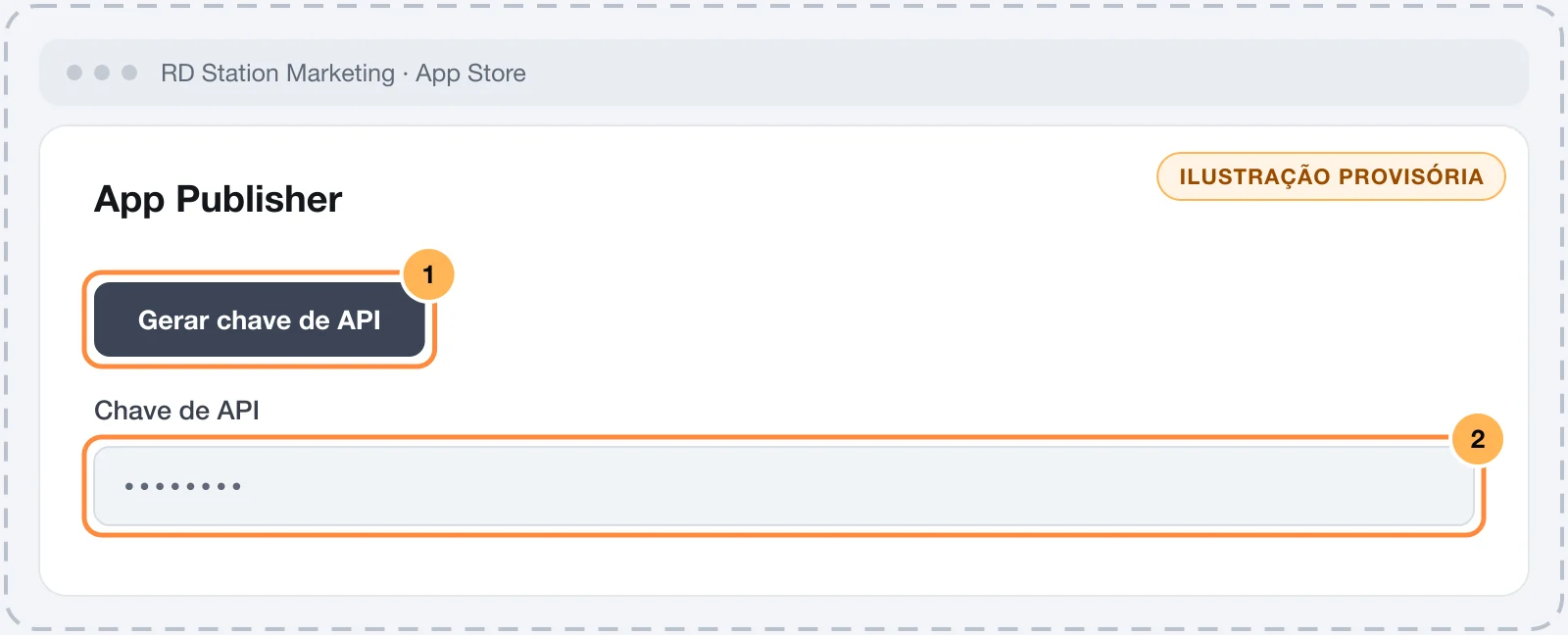
Keep the key safe
This key can record conversions on behalf of your account. Paste it only into Vipter. Once saved, the field only shows its last characters.
Step 2: connect in Vipter
- In the Vipter dashboard, open GeneralIntegrationsCRM and email marketingRD Station Marketing.
- Under Connection, fill in the numbered fields.
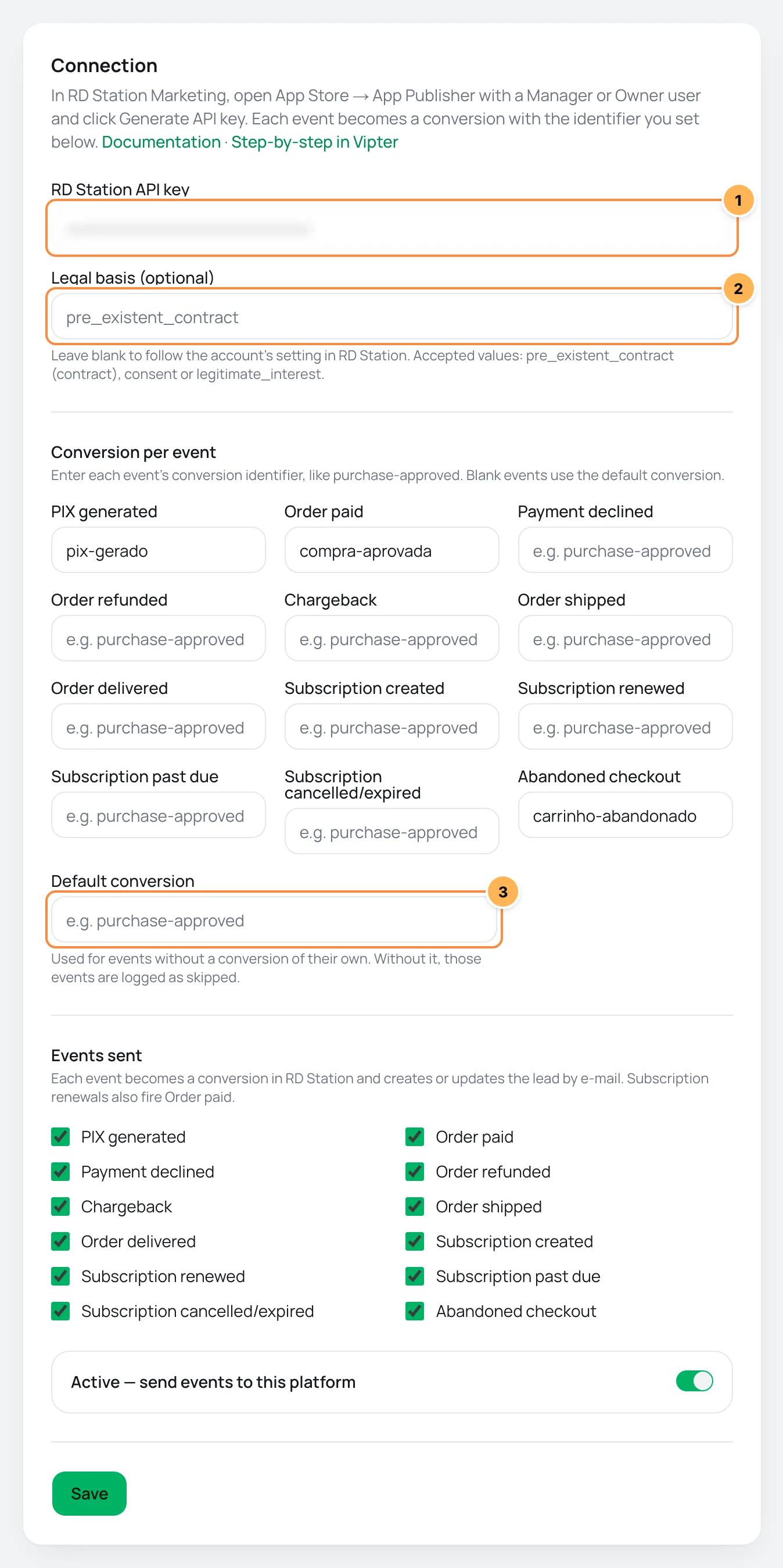
| # | Field | What to paste |
|---|---|---|
| 1 | RD Station API key | The key you generated in step 1. |
| 2 | Legal basis (optional) | Left blank, RD Station follows the account settings. See below for when to fill it in. |
| 3 | Default conversion | The conversion identifier for the events left blank. Without it, those events show as skipped. |
- Under Conversion per event, enter the identifier for each event that should become a conversion.
- Under Events sent, uncheck what you don't want to send.
- Leave Active — send events to this platform on and click Save.
An example of conversion per event:
| Event | Conversion identifier |
|---|---|
| PIX generated | pix-gerado |
| Order paid | compra-aprovada |
| Payment declined | pagamento-recusado |
| Order refunded | compra-estornada |
| Abandoned checkout | carrinho-abandonado |
| Subscription cancelled/expired | assinatura-cancelada |
A subscription renewal also fires Order paid, and the subscriber converts on compra-aprovada again with every charge. If this conversion starts a welcome sequence, set up the RD Station automation so it doesn't repeat the sequence for anyone who already went through it.
The legal basis
The legal basis tells RD Station why you may send communications to the lead. The accepted values are pre_existent_contract (an existing contract), consent and legitimate_interest.
A purchase is not consent for marketing. Choose consent only if your checkout collects that consent some other way. Left blank, Vipter sends no legal basis and RD Station uses the account settings.
Step 3: use tags per offer (optional)
- Under Tags per offer, pick the Offer.
- Enter the Tags, such as
curso-x. - Click Add rule.
Optional: the offer's tags go with the conversion when the purchase is confirmed (order paid, subscription created or renewed). The conversion identifier stays the event's. This way, a single compra-aprovada conversion with the curso-x tag tells which product was bought, without creating one conversion per product. The rule also applies to the other offers of the same product.
What RD Station receives
Each event is a conversion with the event's identifier and this lead data, when present: e-mail, name, mobile number with country code, city, state, country, the offer rule's tags and the visit's source (utm_source, utm_medium, utm_campaign and utm_term, in RD Station's traffic source fields).
The RD Station API key only accepts conversions. That's why Vipter does not mark the lead as a sale or as a won opportunity: use the compra-aprovada conversion in an RD Station automation for that.
Test
RD Station has no test button in Vipter, because every call with the key records a conversion. Test through the checkout: fill in a conversion for PIX generated, generate a PIX on an offer with your e-mail, without paying, and reload the RD Station page in Vipter.
It worked if
The event shows as sent under Recent deliveries, and the lead shows up in RD Station with the pix-gerado conversion.
Deliveries, retries and resend
- sent: RD Station recorded the conversion.
- skipped: the sale has no e-mail (
customer has no e-mail) or the event has no conversion (no RD Station conversion identifier for …). - failed: RD Station refused or did not answer. An invalid key is not retried. Temporary failures get automatic retries.
An event skipped for lack of a conversion can be sent later: fill in that event's conversion, save and use Resend on its row. See retries and resend.
Common problems
-
The event failed with 401
The key is wrong or no longer valid. Copy the current key in App Publisher, or generate another one, and save.
-
Many events show as skipped
They are events without a conversion of their own, with the Default conversion empty. Fill in their conversion or uncheck those events under Events sent.
-
The lead was created without a phone
The buyer did not enter a phone, or the number doesn't have enough digits. The e-mail is the only required data.
What to do next
- Understand values per event and offer rules.
- See the events sent and when each one goes out.
Connect ActiveCampaign
Create and update the contact in ActiveCampaign on every sale event, apply tags per event and per offer, and subscribe the buyer to a list without overriding anyone who unsubscribed.
Connect HubSpot
Create and update the contact in HubSpot on every sale event, mark buyers who paid as customers and open a deal for each paid order, in the pipeline and stage you choose.