Connect Circle
Add the buyer to your Circle community's access groups when the sale is approved, and remove them from those groups on refund, chargeback or cancellation.
With Circle connected, every approved sale adds the buyer to the access groups of your community that you chose for that offer. Anyone who is not a member yet gets the Circle invitation by e-mail. When the purchase is refunded, charged back, or the subscription is cancelled or expires, the member leaves those groups and stays in the community, with their posts and other groups.
Before you start, read how member areas work.
Before you start
- A Circle community on a plan with access to the Admin API v2.
- The access groups already created, with the paid spaces and content linked to them.
- The Admin or Owner role in the Vipter project.
- A product with at least one offer in Vipter.
Step 1: create the token in Circle
- In Circle, open DevelopersTokens.
- Create a token of the Admin V2 type and copy it.
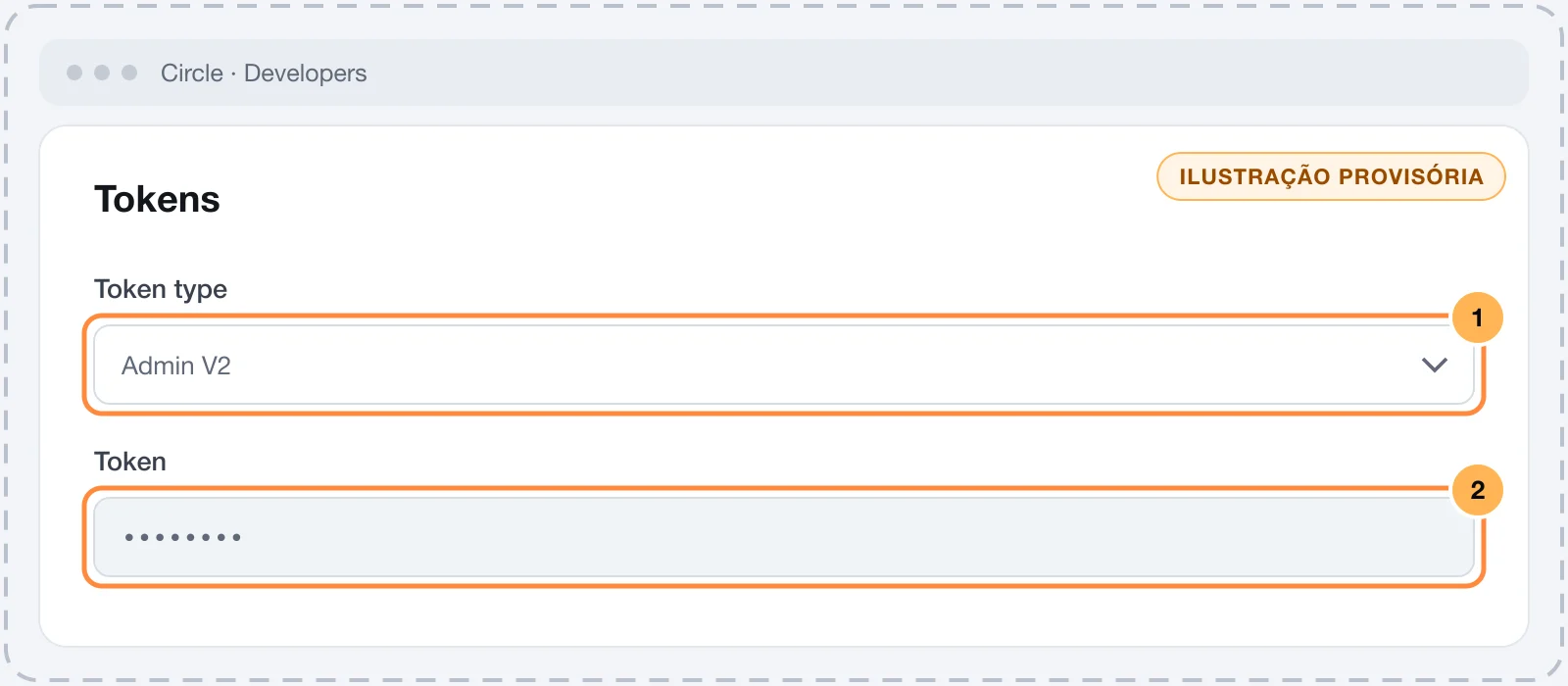
The token works for a single community. For another community, create another token and another connection.
Also write down the numeric ID of each access group the offers will grant. Look for the ID on the access group's page in the Circle dashboard. If you can't find it, ask Circle support.
Keep the token safe
This token can invite members and change access in the community. Paste it only into Vipter. Once saved, the field only shows its last characters.
Step 2: connect in Vipter
- In the Vipter dashboard, open GeneralIntegrationsMember areasCircle.
- Under Connection, fill in the field and leave Active — send access to this platform on.
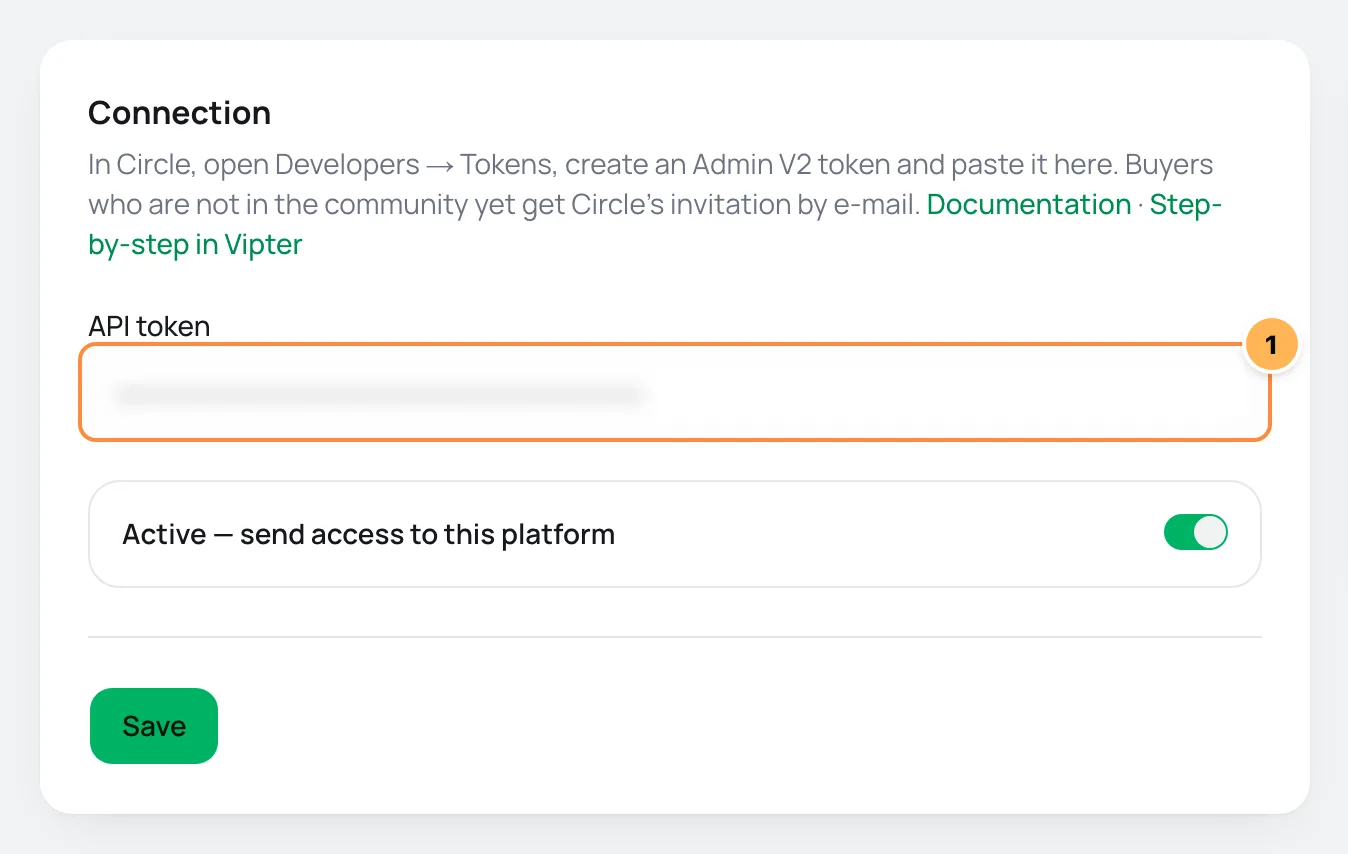
| # | Field | What to paste |
|---|---|---|
| 1 | API token | The Admin V2 token you created in step 1. |
- Click Save and then Test connection. Vipter looks up the community with the token.
Step 3: link each offer to its access groups
- Under Access rules, pick the Offer.
- Enter the Access group IDs in Circle separated by commas, such as
12345, 67890. - Click Add rule. Repeat for every offer that grants access.
Step 4: test with a purchase
Make a test purchase of an offer that has a rule, with an e-mail that is not yet a member of the community.
It worked if
The purchase shows up under Recent deliveries as Access granted, with the status succeeded, the Circle invitation arrives in the inbox and, after joining, the member already sees the access group's spaces.
How it works afterwards
- Approved sale: Vipter looks up the member by e-mail, including among those invited. If they don't exist, they are created with the purchase's name and Circle sends the invitation. Then they join each access group in the rule. Anyone who is already a member doesn't get another invitation.
- Refund, chargeback, subscription cancelled or expired: the member leaves the rule's access groups. Their profile, posts and other groups stay as they are.
Retries and resend
If Circle doesn't answer or returns a temporary error, Vipter tries again on its own after 5 minutes, 30 minutes, 2 hours, 6 hours and 24 hours. Right after the invitation, Circle sometimes doesn't recognize the new member yet: this case is retried too. A permanent refusal, such as a wrong token, a plan without the Admin API or a group that doesn't exist, is not retried. After you fix it, use Resend. See retries and resend.
Common problems
-
The platform rejected the credentials with code 401
The token is wrong or was deleted. Create another one of the Admin V2 type and save.
-
The platform rejected the credentials with code 403 and "not eligible for admin API v2 access"
The community's plan doesn't include the Admin API v2. The token is correct: you need to change the plan in Circle.
-
The delivery failed with "Missing record: access group"
The rule's access group doesn't exist in this community. Check the ID, remove the rule and create another one. Then grant this buyer's access directly in Circle: the resend repeats the old rule.
What to do next
- Understand how member areas work.
- To e-mail the member, connect an e-mail provider.
Connect The Members
Grant The Members products to the buyer when the sale is approved and deactivate their subscription on refund, chargeback or cancellation.
How paid communities work
Sell access to a private Telegram group or channel or to a Discord role. Learn when access is granted and removed, where the buyer gets the link and what the integration cannot do.