Connect Proteside
Paste Proteside's SDK key and choose where it runs: the checkout, the customer portal or both. Vipter installs the code itself, and Proteside checks in the buyer's browser that the Pix and other instant payments, the crypto wallets, the boleto and the card on screen are your store's.
Proteside is a security layer for the moment of payment. It runs in the buyer's browser and checks that the payment data on screen is what your store issued: Pix and other QR instant payments such as UPI, PayNow and PromptPay, QR wallets, crypto wallet addresses, the boleto line and the card form. See what Proteside protects. If a malicious extension or script swaps any of them, Proteside blocks it before the buyer confirms. It also produces alerts and evidence for PCI DSS requirements 6.4.3 and 11.6.1.
To turn Proteside on, all you need is your store's SDK key. There is no code to copy: Vipter builds the install with your key and puts it as the first script in the <head> of the pages you choose, as Proteside's docs ask.
Before you start
- A Proteside account with the subscription up to date.
- The Admin or Owner role in the Vipter project.
What Proteside protects
Proteside recognises on its own the payment methods that appear on the page. It checks:
| Method | Where it is used | What Proteside checks |
|---|---|---|
| Pix | Brazil | The QR code and the copy-and-paste code, the recipient key, the amount and what goes to the clipboard when the buyer clicks copy. |
| Boleto | Brazil | The boleto line and the issuing bank. |
| QR instant payments | UPI (India), PayNow and SGQR (Singapore), FPS (Hong Kong), DuitNow (Malaysia), CoDi (Mexico), PromptPay (Thailand), QR Ph (Philippines) and Transferencias 3.0 (Argentina) | The QR code. For UPI, also the recipient's VPA. |
| QR wallets | Mercado Pago, PicPay and others | The wallet's QR code. |
| Crypto | Worldwide | The wallet address, the QR code and what the copy button copies. Proteside's technical docs cover Bitcoin addresses and Ethereum-format addresses (0x…), the same format stablecoins such as USDT and USDC use on Ethereum-compatible networks. |
| Credit and debit cards | Worldwide | The form: scripts that capture what is typed, a swapped form or iframe, layers on top of the payment area and data sent to unknown addresses. Proteside never reads the card data. |
In practice, it protects what your store's checkout shows. In Vipter, the checkout's methods depend on the payment providers you connected.
The monitored methods, the protection mode and the trusted recipients (the Pix keys, boleto banks, UPI VPAs and the Bitcoin and Ethereum wallets allowed to receive) are chosen in the Proteside dashboard. With no method ticked there, it monitors Pix and cards.
Some limits, according to Proteside:
- Dynamic Pix: the QR code carries only a charge address, with no key. Proteside notices the code being swapped after the first read, but doesn't check the recipient.
- CoDi: the account is encrypted inside the QR code. A swapped code is detected, but the recipient isn't checked.
- Crypto addresses created per order: when the gateway creates a new wallet for each order, there is no fixed recipient to check. Proteside also doesn't check an address the buyer types or pastes from somewhere else.
- Other crypto networks: Proteside's site also mentions USDT on Tron and Solana Pay, but its technical docs don't include them yet.
Step 1: create the Proteside account
If your store doesn't have an account yet, create one at proteside.com. The Proteside page in Vipter also has the Create an account link, in the first item of the list of steps.
Step 2: copy the SDK key
- In the Proteside dashboard, open ConfiguraçõesPáginas e Domínios (Settings › Pages and domains).
- In the Instalação do SDK (SDK installation) card, copy the Chave do SDK (SDK key). It starts with
pk_live_followed by 32 more characters.
The key is public: it only identifies your store to Proteside and shows up in the pages' code. It is not a password.
Step 3: paste the key in Vipter
- In the Vipter dashboard, open GeneralIntegrationsPayment securityProteside.
- In the Activation card, paste the key into the SDK key field.
- Under Where Proteside runs, check the pages. Both switches start on and are marked Recommended. See where Proteside runs.
- Click Save.
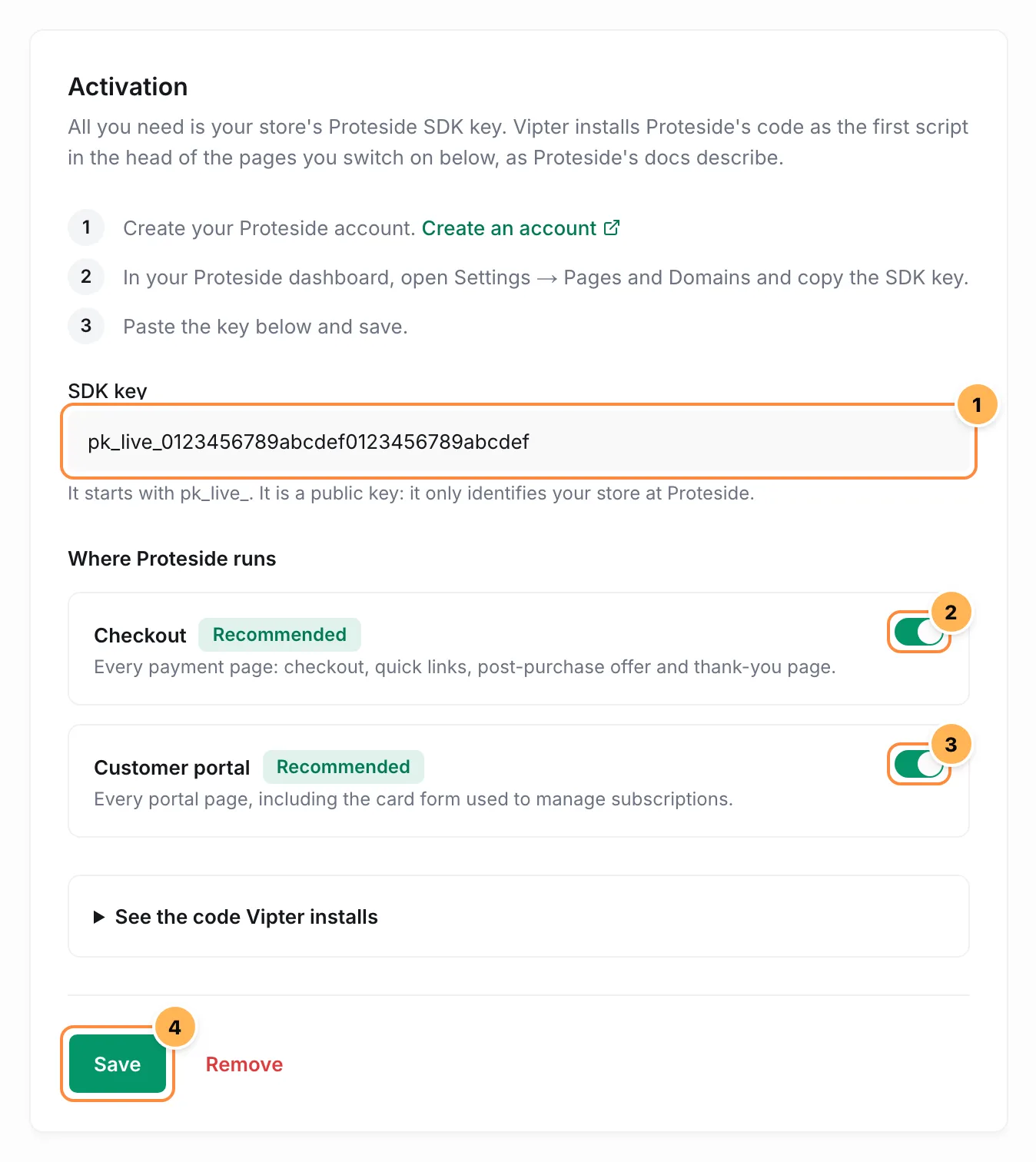
If you copied the whole block from Proteside's HTML tab by mistake, you can paste it anyway: Vipter keeps only the key inside it.
It worked if
You see Saved., the field shows the saved key and, at the top of the page, the status reads Active, followed by the pages that are on. The Proteside card in Integrations lists the same pages.
What Vipter installs
After saving, open See the code Vipter installs, below the switches. Built with your key. Rules, protection mode and recipients come from your Proteside dashboard.
The code is the tag for Proteside's shield.js, on the stable channel, with your key in data-key and Proteside's address in data-api. Vipter puts it in the <head> ahead of the page's other scripts, including the payment provider's and the pixels.
Everything else comes from the Proteside dashboard, through the configuration shield.js fetches with your key: the protection mode, the trusted recipients, the blocking rules and the GTM containers. When you change something there, there is nothing to touch in Vipter. The store's pages don't need to be registered either: Proteside detects them on its own, on the first visits.
Where Proteside runs
Each switch turns Proteside on for a group of pages.
- Checkout: Every payment page: checkout, quick links, post-purchase offer and thank-you page. In practice:
- the checkout of each offer, including on your own domain;
- quick links;
- the checkout of sessions created through the API;
- the post-purchase offer;
- the thank-you page, which holds the Pix QR code and the boleto line.
- Customer portal: Every portal page, including the card form used to manage subscriptions. See the customer portal.
The Vipter pages that show payment data are in these two groups. To protect the payment end to end, leave both switches on.
With both switches off, the SDK key stays saved but Proteside runs on no page, and the status at the top reads Off.
The checkout and the portal move between steps without reloading the page. On each change, Vipter tells Proteside the path of the new page, so there is nothing to set up for that.
The Studio preview doesn't load Proteside
The live preview in the Studio doesn't load Proteside. To check the install, open the real link of an offer.
Step 4: check the install
- Open the link of an offer in the project in a regular browser window. If you only turned on Customer portal, open the portal.
- Open the developer tools (F12) and go to the Console tab.
- Wait a few seconds after the page loads and type:
Proteside.getStatus()The answer is an object. The fields that tell you everything is fine:
| Field | What it should show |
|---|---|
initialized | true. Proteside takes up to about 2 seconds to start. |
rulesApplied | true once the rules from the Proteside dashboard have reached the page. |
installationOrderValid | true when Proteside runs before the other scripts. |
paused | false. With true, Proteside is in developer mode or the subscription is not up to date. |
mode | monitor only records alerts. block also blocks. This is chosen in the Proteside dashboard. |
channel | stable, the channel Vipter installs. |
calibrating | true for the first 30 seconds, while Proteside learns the page. Then false. |
activeThreats | 0. A higher number means a change was detected on this page. |
paymentMethodsMonitored | The methods ticked in the Proteside dashboard, such as ['pix', 'card']. Possible values include pix, boleto, card, upi, paynow, promptpay, duitnow, qrph, hkfps, codi, transferencias3, qr_wallet, bitcoin and ethereum. |
A CORS error in the console is expected
The console may show a CORS error on a request for shield.js. That is Proteside itself reading the file to compute its own hash, against a CDN that sends no CORS headers. Protection works normally.
It worked if
Proteside.getStatus() shows initialized: true, rulesApplied: true and installationOrderValid: true. Within 1 minute, the Proteside dashboard shows the Proteside Ativo (Proteside active) indicator, and the page appears under Páginas detectadas (Detected pages), in Páginas e Domínios, with the SDK ativo (SDK active) badge.
Change the key
If you rotated the key in Proteside, in Páginas e Domínios, paste the new one into the SDK key field and click Save. The old key still works for 24 hours, so there is time to switch without leaving the checkout unprotected.
Remove
Click Remove. Vipter asks: Take Proteside off the checkout and the customer portal? Your Proteside account stays as it is. When you confirm, you see Proteside removed and Proteside comes off every page.
The install, each change and the removal go into the activity log, with the key and the switches that are on.
Common problems
When Vipter refuses the key, you see Check the SDK key and the reason shows under the field.
-
Paste Proteside's SDK key.
The field was empty. Paste the key from step 2.
-
Invalid key. It looks like pk_live_ followed by 32 characters.
What you pasted doesn't hold a complete key, or holds more than one. Copy just the Chave do SDK again in Páginas e Domínios, with no spaces in the middle.
-
Proteside is not definedin the consoleshield.jsdidn't load. Check that the switch for that group of pages is on in Vipter and that you are on a page of that group, outside the Studio preview. An ad blocker in the browser also stops it from loading: test in a window without extensions. -
initialized: falsefor more than a few secondsProteside didn't accept the key. Check that it belongs to the right store and wasn't rotated more than 24 hours ago in Proteside. Paste the current key and save.
-
rulesApplied: falseThe rules from the Proteside dashboard didn't reach the page. Check that the Proteside subscription is up to date and reload the page after a few seconds.
-
paused: trueProteside is in developer mode, the subscription is not up to date or the store was suspended in Proteside. Sort it out in the Proteside dashboard: there is nothing to change in Vipter.
-
The Proteside dashboard shows Proteside não detectado (Proteside not detected)
Proteside hasn't received real visits yet. Open the link of an offer, wait 1 minute and refresh the Proteside dashboard. If it stays that way, check that the switches are on in Vipter and that the page shows
initialized: truein the console.
What to do next
- Make a test purchase with Pix and watch Proteside's Integridade de Pagamento (payment integrity) cards change to ÍNTEGRO (intact).
- Check what the buyer sees in the customer portal.
- See the other integrations in Integrations: what connects to what.
Connect ERP Olist (Tiny)
Send each paid order to ERP Olist as a sales order, with optional NF-e and stock, and get the invoice and the tracking back, with an app created in your account.
Transactional e-mail: how it works
Learn how Vipter sends your store's e-mails through your own e-mail account, what each sender field does and how to check that everything is arriving.