Connect Telegram
Grant entry to a private Telegram group or channel when the sale is approved and remove the person on refund or at the end of the subscription, with your store's own bot.
With Telegram connected, every approved sale creates a personal link. The buyer opens the link, starts the chat with your store's bot and gets an invite to the group or channel. The bot only approves the account that used the link. On refund, chargeback or at the end of the subscription, the bot removes the person.
Before you start, read how paid communities work.
Before you start
- A Telegram account, on the phone or on the computer.
- A private supergroup or channel that you own or administer. A basic group won't do.
- The Admin or Owner role in the Vipter project.
- An e-mail provider connected, so the link also arrives by e-mail. See E-mails to buyers.
Step 1: create the bot in BotFather
- In Telegram, open the chat with @BotFather, Telegram's official bot for creating bots.
- Send
/newbot. - Choose the bot's name, which buyers see in the chat, such as "Example Store Community".
- Choose the username, which must end in
bot, such asexamplestore_bot. - BotFather replies with the bot token, in the
123456789:AA…format. Copy it and keep it for step 2.
Keep the token safe
Whoever has the token controls the bot. Paste it only into Vipter. Once saved, it is not shown again: the field only shows its last characters.
Use a bot only for Vipter
When you save, the bot's messages start arriving at Vipter. A bot that already serves another tool stops working there. Create a new bot for your store.
Step 2: paste the token in Vipter
- In the Vipter dashboard, open GeneralIntegrationsCommunitiesTelegram.
- In Connection, fill in the field:
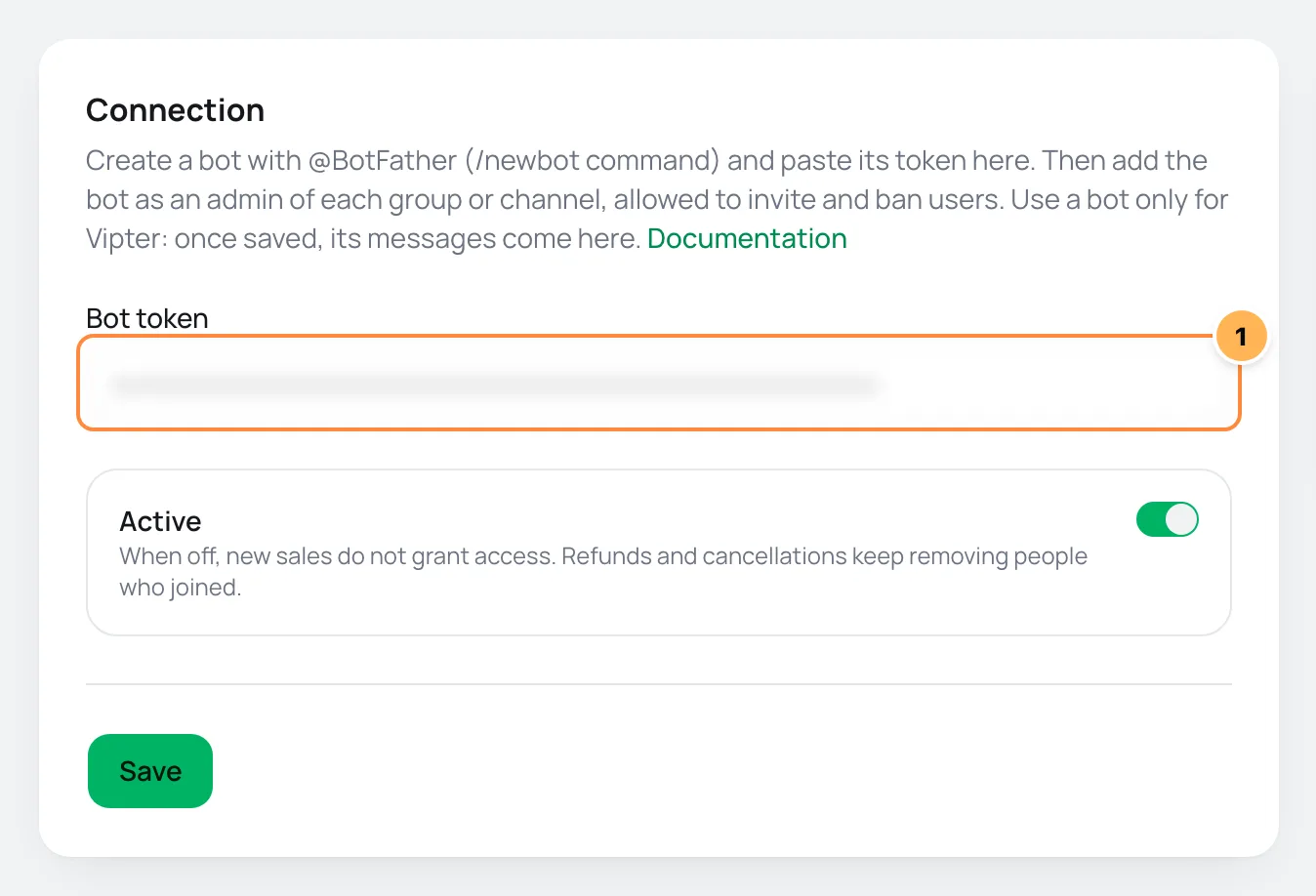
| # | Field | What to paste |
|---|---|---|
| 1 | Bot token | The token BotFather sent in step 1. When editing later, leave it blank to keep the saved token. |
- Leave Active on and click Save.
Vipter checks the token with Telegram and starts receiving the bot's messages. The card shows the bot's username and Receiving messages from Telegram.
Step 3: make the bot an administrator of the group or channel
- In Telegram, open the group or channel and add the bot as a member, searching for its username.
- Promote the bot to administrator.
- Leave on the permissions to invite users via link and to ban users. The names change a little between groups and channels and between Telegram apps.
Without the invite permission, the bot cannot create the invites. Without the ban permission, it cannot remove whoever lost access.
A basic group does not receive join requests
The integration needs a supergroup or a channel. Use a supergroup or channel. Basic groups get no join requests: turn on approval of new members to convert the group.
Step 4: find the group or channel ID
Open the group in Telegram Web: the number after # in the address bar is the ID (e.g. -1001234567890).The ID of supergroups and channels is a negative number that starts with -100. If you copied a number without that start, replace the leading minus sign with -100: -1234567890 becomes -1001234567890.
Step 5: link each offer to the group or channel
- In Access rules, fill in:
| # | Field | What to paste |
|---|---|---|
| 1 | Offer | The offer that grants access. A sale of another offer of the same product also grants it. |
| 2 | Group or channel ID | The ID from step 4, with the minus sign. |
| 3 | Display name (optional) | The name of the invite button the bot sends. Blank, the group or channel name is used. |
- Click Add rule.
The bot checks that the group exists, that it is a supergroup or channel and that it is an administrator with both permissions. If something is missing, the rule is not saved and the dashboard says what to fix. Repeat for each group or channel the offer grants.
Step 6: test
- Click Test connection. Vipter checks the token, message delivery and every rule again.
- Make a test purchase of an offer with a rule and follow the link on the thank-you page, as a buyer. See Test your store.
It worked if
The Connection OK. message shows, the purchase shows in Accesses as Active once you start the chat with the bot, and the bot approves your join request.
How the buyer joins
- The buyer opens the personal link, on the thank-you page, in the e-mail or in the portal, and taps "Open in Telegram".
- In the chat with the bot, they tap "Start". The bot ties the access to that Telegram account and replies with one invite button per group or channel.
- The buyer taps the invite and requests to join. The bot approves right away.
Invites are valid for 24 hours. If they expire, the buyer opens the link again and taps "Start": the bot sends new invites and cancels the previous ones. A join request from another account, such as someone who got a forwarded invite, is declined, and the bot tells that person why.
The buyer's walkthrough is in Join the community you bought.
When access ends
The bot removes the person from every group or channel of the access and cancels the invites that are still valid. The person can join again if they buy again. If Telegram refuses, Vipter tries again, as explained in Follow the accesses.
Common problems
-
The token was not accepted. Check that you copied the whole token.
Copy the token again from the chat with BotFather. If you generated another token, the previous one stopped working.
-
Saved, but Telegram did not accept the message delivery address:
The token was saved, but Telegram refused the message address. Click Test connection and, if it persists, save again.
-
The bot is delivering messages to another address. Save the connection again to fix it.
Another tool started using the same bot. Save the connection again and use that bot only in Vipter.
-
Use the numeric group or channel ID, like -1001234567890.
See step 4.
-
The bot could not find that chat. Check the ID and that the bot was added to the group or channel.
Check the ID and that the bot is in the group or channel.
-
The bot must be an admin of the group or channel.
Promote the bot to administrator, as in step 3.
-
Give the bot the permission to invite users.
Turn on the permission to invite users via link in the bot's administrator rights.
-
Give the bot the permission to ban users. Without it, people who lose access cannot be removed.
Turn on the permission to ban users in the bot's administrator rights.
-
The buyer says the bot did not reply
Click Test connection. If the bot was removed from the group or lost a permission, the rule shows the problem in red.
What to do next
- Understand what happens on each sale in How paid communities work.
- Edit the Community access e-mail in Transactional e-mails.
How paid communities work
Sell access to a private Telegram group or channel or to a Discord role. Learn when access is granted and removed, where the buyer gets the link and what the integration cannot do.
Connect Discord
Put the buyer in your Discord server with the purchase role when the sale is approved and take the role away on refund or at the end of the subscription, with your store's own application.